User and group management
Kube-DC separates Organization administration from Project access. Organization Admins manage members and Organization Groups, while Project roles control what those groups can do in each Project. Custom roles cover narrower requirements.
Security model
Each Organization in Kube-DC has a dedicated identity domain:
- Dedicated Keycloak Realm: Every organization gets its own Keycloak realm, acting as an independent OIDC provider. Users from different organizations cannot share credentials or sessions.
- Isolated JWT Tokens: Authentication tokens are scoped to a single organization realm. A token issued for
acmecannot be used to accessexampleorganization resources. - Separate Token Authentication: Each realm has its own signing keys, token policies, and session management. Credentials and sessions are scoped to their issuing organization.
- Kubernetes RBAC Integration: JWT group claims are mapped to Kubernetes RoleBindings automatically. Access is enforced at the API server level, independent of the UI layer.
This model separates Organization identity and membership from Project workload access. Kubernetes RBAC is the authorization boundary; Project networking, quotas, and platform policy add workload isolation.
Standard Roles
When an organization and its projects are created, Kube-DC automatically provisions a set of standard roles. These cover the most common access scenarios without any manual configuration.
Organization-Level Roles
| Role | Group | Permissions |
|---|---|---|
{org}-admin | org-admin | Manage members, billing, shared quota, Projects, and Organization Groups within this Organization; receives admin in every Project |
{org}-user | user | Read the Organization and Project list; receives user in every Project |
Project-Level Roles
Every project receives these four roles automatically:
| Role | Description | Key Permissions |
|---|---|---|
admin | Project administration | Manage the supported namespaced resource set and namespaced RBAC; controller-owned quota objects remain read-only |
developer | Workload management | Manage supported workloads, volumes, Services, and managed services; raw Kubernetes Secrets are read-only; no RBAC management |
project-manager | Operations and oversight | Read and monitor Project resources, use the VM console, update selected managed security resources, and create or update KMS keys; no Project membership or quota management |
user | Read-only access | Read Project resources and logs; no raw Secret access or VM console |
Automatic Role bindings
When a project is created, these bindings are configured automatically:
| Subject | Role | Effect |
|---|---|---|
{org}:org-admin | admin | Organization admins receive the standard admin role in every Project |
{org}:user | user | Organization members receive the standard user role in every Project |
Additional Project roles, including admin, developer, and
project-manager, can be assigned through Organization Groups.
Manage users
The Users section in the console is available to organization administrators under the Manage Organization menu.
User list
The users page shows all members of the organization with their assigned roles, status, and join date. Organization admins can:
- Create User: Add a new user directly to the organization
- Assign Groups: Grant elevated per-project access through organization groups
- Delete: Remove a user from the organization
- Pending Requests tab: review and approve self-service join requests
Only users with the org-admin role can create, delete, or modify other users. Regular users can view the list but cannot perform management actions.
Create a user
Organization administrators can create users directly from the UI without any external tooling.
Steps:
- Navigate to Manage Organization → Users
- Click Create User in the top-right corner
- Fill in the required fields:
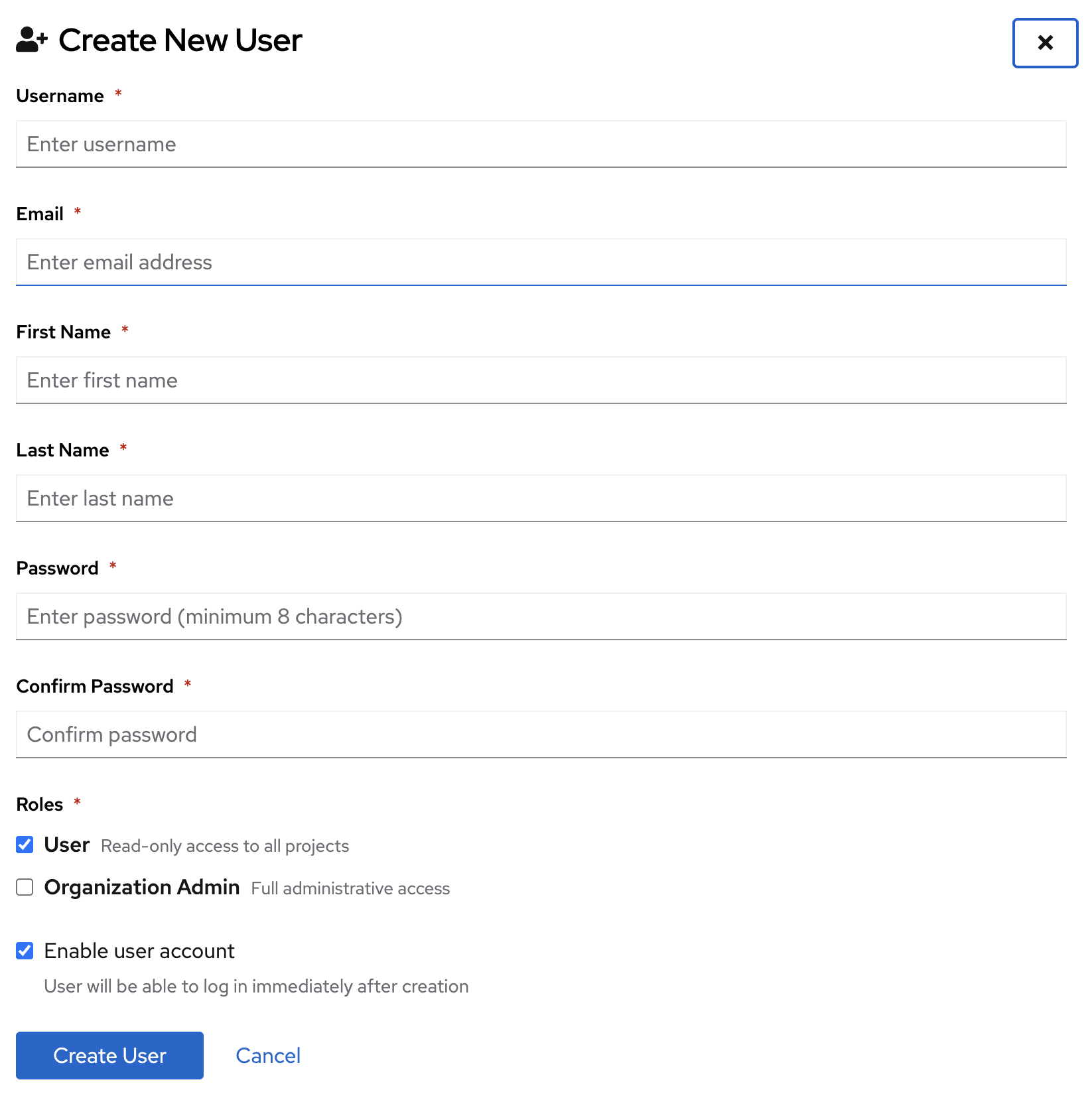
| Field | Description |
|---|---|
| Username | Unique login name (letters, numbers, ., _, -; minimum 3 characters) |
| User's email address | |
| First Name | Given name |
| Last Name | Family name |
| Password | Initial password (minimum 8 characters) |
| Roles | Initial Organization role: User (read-only) or Organization Admin (Organization management and full Project access) |
| Enable user account | When checked, the user can log in immediately after creation |
- Click Create User
The user is created in the organization's Keycloak realm and can log in to the Kube-DC console immediately. They receive automatic read-only access (user role) to all projects unless assigned to an organization group for elevated access.
New users are created with the User role by default, which grants read-only access to all projects. To grant elevated project access, use Organization Groups after creation.
Assign groups to a user
After creating a user, you can assign them to organization groups to grant elevated access to specific projects.
Steps:
- In the Users list, find the user and click Assign Groups
- Select the action: Assign groups or Remove groups
- Choose from the available groups:
- Realm Groups (
org-admin,user): Organization-wide roles - Organization Groups: Project-specific elevated access groups you have created
- Realm Groups (
- Click Assign Groups to apply
Group assignments and removals affect newly issued tokens. An access token that was already issued keeps its existing group claims until it expires, which is 15 minutes by default. Sign out and sign in again to obtain updated claims immediately.
Handle join requests
Users who discover Kube-DC independently can request to join an organization through the Join Request flow on the login page. Organization administrators are notified and can approve or deny these requests from the Pending Requests tab.
Steps:
- Navigate to Manage Organization → Users → Pending Requests
- Review pending requests (name, email, requested date)
- Click Approve to add the user to the organization with the default
userrole, or Deny to reject the request
Approved users are automatically added to the user group and receive read-only access to all projects.
Delete a user
- In the Users list, click Delete next to the user
- Confirm the deletion in the dialog
The user is removed from the Organization's Keycloak realm, which blocks new logins and token refresh. An access token that was already issued can remain valid until its expiry, which is 15 minutes by default.
Organization groups
Organization Groups define elevated access per Project. Each group connects a Keycloak group claim to Kubernetes RoleBindings in the selected Projects' backing namespaces.
Use Organization Groups when you need to:
- Grant
admin,developer, orproject-manageraccess to specific Projects - Manage teams: one group can span multiple Projects with a different role in each
Create an Organization group in the console
- Navigate to Manage Organization → Organization Groups
- Click Create Group and provide a group name
- Configure project permissions:
For each project permission entry:
- Project: Select the target project from the dropdown
- Roles: Select one or more roles to grant in that project (
admin,developer,project-manager,user)
You can add multiple project permissions to a single group. Click Update Group to save.
- Assign users to this group through Users → Assign Groups
Create an Organization group with kubectl
For infrastructure-as-code workflows, Organization Groups can be managed as Kubernetes CRDs:
apiVersion: kube-dc.com/v1
kind: OrganizationGroup
metadata:
  name: backend-team        # Group name (also becomes the Keycloak group name)
  namespace: acme           # Organization namespace
spec:
  permissions:
  - project: production
    roles:
    - developer             # Manage supported workloads in 'production'
  - project: staging
    roles:
    - admin                 # Full admin access in 'staging'
  - project: monitoring
    roles:
    - project-manager       # Monitor resources and use approved management actions
Apply the group:
kubectl apply -f organization-group.yaml
When this resource is created, Kube-DC automatically:
- Creates a Keycloak group
backend-teamin the organization's realm - Creates RoleBindings in each specified Project's backing namespace
OrganizationGroupmust be created in the Organization API namespace, not a Project backing namespace- The group name must be unique within the organization
- Standard groups (
org-admin,user) are managed automatically and cannot be overridden through OrganizationGroup
Controller lifecycle
Custom Project Roles
The four standard Project roles cover most scenarios. A holder of the Project admin role can create a custom Kubernetes Role when a narrower permission set is required.
Edit roles in the console
Navigate to Manage Organization → Project Roles to view and edit roles per project:
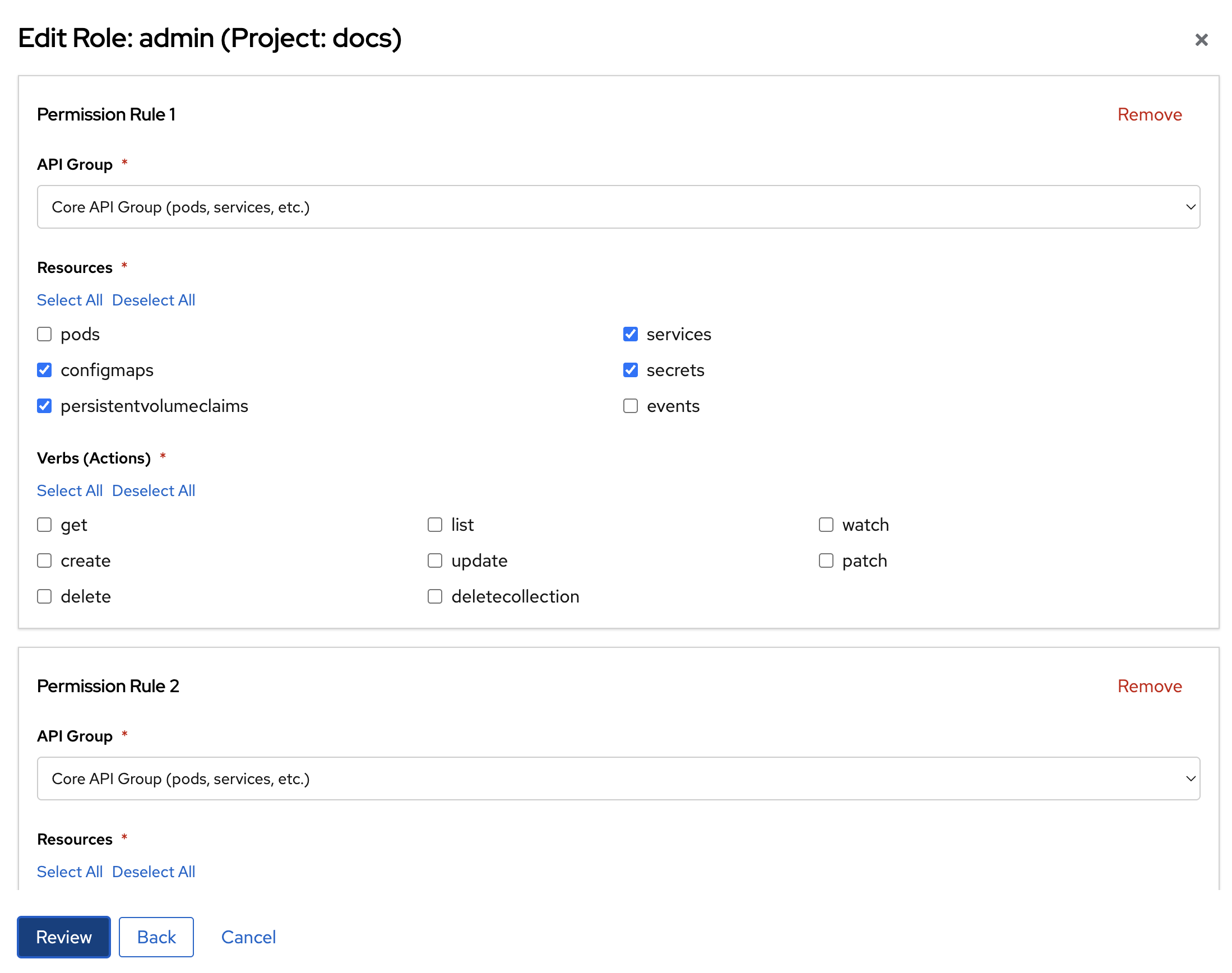
In the role editor, define permission rules by:
- API Group: select
Core API Groupfor pods and services, orapps,kubevirt.io, or another group - Resources: select the resource types, such as configmaps, secrets, and services
- Verbs (Actions): Select allowed operations:
get,list,watch,create,update,patch,delete
Multiple permission rules can be added to a single role. Click Review to preview before saving.
Create a custom Role with kubectl
apiVersion: rbac.authorization.k8s.io/v1
kind: Role
metadata:
  name: ci-deployer
  namespace: acme-production     # Backing namespace: {org}-{project}
rules:
  - apiGroups: ["apps"]
    resources: ["deployments", "replicasets"]
    verbs: ["get", "list", "create", "update", "patch"]
  - apiGroups: [""]
    resources: ["pods", "services", "configmaps"]
    verbs: ["get", "list", "watch"]
Kubernetes Roles are namespace-scoped. To use the same custom role across multiple Projects, create it in every target Project's backing namespace before referencing it from an OrganizationGroup.
After the role exists in the Project's backing namespace, reference it from an OrganizationGroup:
spec:
  permissions:
  - project: production
    roles:
    - ci-deployer   # Custom role name
Permission reference
Organization API scope
| Resource | org-admin | user |
|---|---|---|
organizations | get, list, patch, update, watch | get |
projects | full CRUD | get, list |
organizationgroups | full CRUD | None |
Project API scope
| Resource | admin | developer | project-manager | user |
|---|---|---|---|---|
virtualmachines | full CRUD | full CRUD | get, list, watch | get, list |
pods | create, get, list, watch, delete | create, get, list, watch, delete | get, list, watch | get, list |
pods/log | get | get | get | get |
| VM console/VNC | ✅ | ✅ | ✅ | ❌ |
services | full CRUD | full CRUD | get, list, watch | get, list |
deployments | full CRUD | full CRUD | get, list, watch | get, list |
secrets | full CRUD | get, list | get, list | ❌ |
configmaps | full CRUD | full CRUD | get, list | get, list |
persistentvolumeclaims | full CRUD | full CRUD | get, list, watch | get, list |
| RBAC (roles, bindings) | full CRUD | ❌ | ❌ | ❌ |
| Pod exec, attach, or port-forward | ❌ | ❌ | ❌ | ❌ |
| VM/VMI port-forward | ❌ | ❌ | ❌ | ❌ |
networkpolicies | ❌ | ❌ | ❌ | ❌ |
Troubleshooting
User cannot log in after creation
- Verify the account is enabled (check the user's status in the Users list)
- Ensure the correct organization URL is being used for login
User can log in but sees no projects
- The user may only have the
userrole, which provides read-only access - Verify they are assigned to the correct organization group for elevated project access
- Verify the user belongs to the expected identity group and inspect the RoleBinding in the target Project's backing namespace
Organization Group not granting access
- Confirm the
OrganizationGroupis created in the Organization API namespace, not a Project backing namespace - Verify the project name in
spec.permissionsmatches exactly (case-sensitive) - Inspect the
OrganizationGroupstatus and the RoleBindings in the target Project's backing namespace; reconciliation is asynchronous
Permission changes not taking effect
- Group membership is carried in the user's access token
- Sign out and sign in again to obtain updated claims immediately; otherwise, an existing token can retain old access until its default 15-minute expiry
Custom role not appearing in Organization Group editor
- The role must exist in the target Project's backing namespace before it can be referenced
- Create the role with
kubectl applyfirst, then reference it from the OrganizationGroup