Deploy VMs
This guide walks you through deploying virtual machines in Kube-DC using both the Console UI and kubectl manifests.
Before you begin
- A Kube-DC Cloud project
- CLI access configured, with
kubectlworking against your Project - (Optional) The
virtctlplugin for VM console access
VM components
Kube-DC virtualization is powered by KubeVirt and uses three main resources:
- DataVolume: manages the VM's disk image (downloads cloud images, provisions PVCs)
- VirtualMachine: defines the VM configuration, resources, and lifecycle
- VirtualMachineInstance (VMI): represents a running VM instance
Create a VM in the console
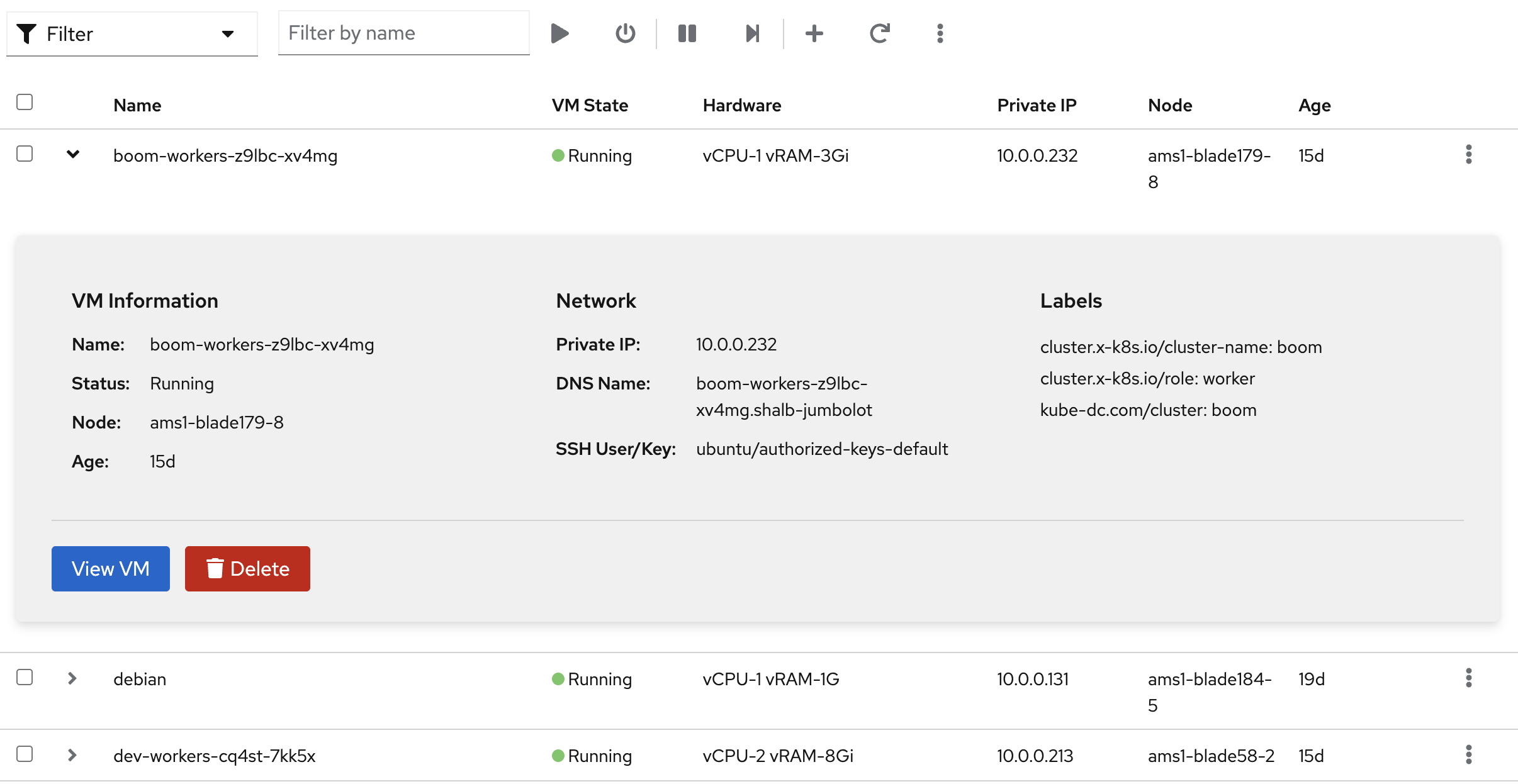
Step 1: Open VM creation
- Select your project from the sidebar
- Navigate to Virtual Machines
- Click + to create a new VM
Step 2: Configure the VM
- VM Name: choose a name (for example,
ubuntu) - Operating System: select from available images (Ubuntu 22.04 / 24.04 / 26.04, Debian 12, CentOS Stream 9, Fedora 42, openSUSE Leap 15.6, Alpine 3.21, Gentoo, Windows 11)
- Version (optional, advanced): most Linux families expose several maintained versions. Ubuntu 24.04, for example, keeps
20260321,20260225,20260209, and20260131. Leave the dropdown on Latest to take the newest mirrored bytes. Kube-DC keeps/latest/pointing at the freshest version per family, refreshed weekly. Pin a specific version only if you need reproducibility against a known build. - vCPUs and RAM: set the resources from your workload's needs
- Root Storage Size: set disk size (for example, 12 GB for Linux, 70 GB for Windows).
The value is a floor as well as a size: a VM is created by cloning a golden image,
so the request cannot be smaller than that golden. Ask for more and the extra space
is yours. The platform grows the disk to your requested size before the VM starts, and the
guest filesystem expands into it on first boot. On Windows that expansion happens
during the first-boot sequence, so
C:reaches its full size a few minutes after the VM is created rather than instantly. - Root disk storage: the real storage choice for the VM (see below):
- Local disk (default): node-local storage; best durable-write latency. No snapshots, no live migration.
- Shared RBD: shared Ceph-backed storage; supports snapshots and (optionally) live migration. Slower durable writes.
- When Shared RBD is selected, an Enable live migration checkbox appears. Select it to let the VM move between nodes during maintenance (available when the OS has a Block golden and the cluster has ≥2 CPU-compatible nodes).
- Accelerator (shown only when Dedicated GPU VM passthrough is enabled and available to your Project): keep No GPU for an ordinary VM, or select an available Dedicated GPU VM profile. Shared GPU/HAMi pod capacity does not make this option available. GPU VMs cannot live migrate; the wizard clears live migration and maintenance requires a shutdown/restart. Follow the guest driver and lifecycle guide after first boot.
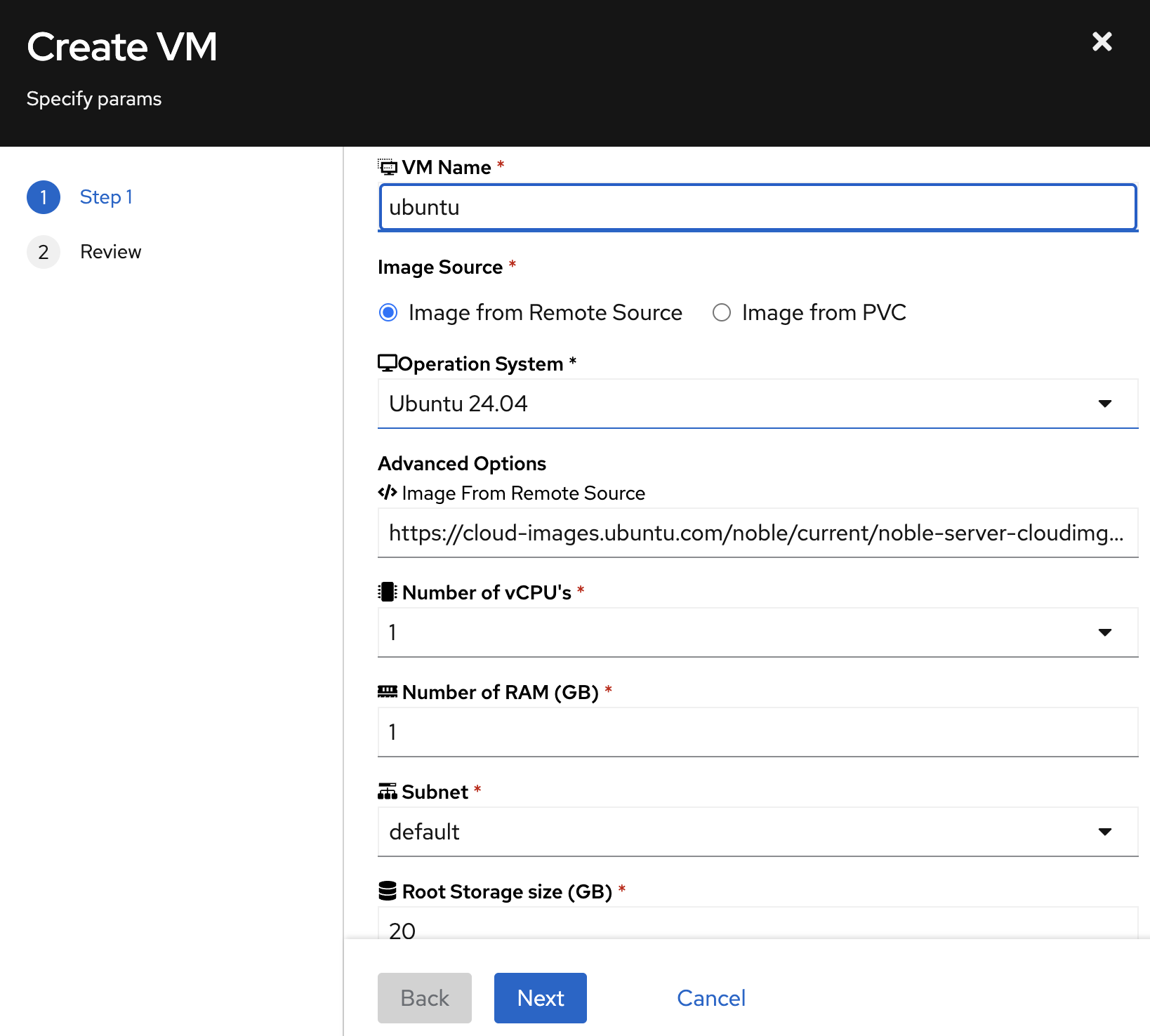
A compact summary under the selector shows exactly what will be provisioned (root disk, provisioning, snapshots, live migration) before you submit.
Step 3: Review and create
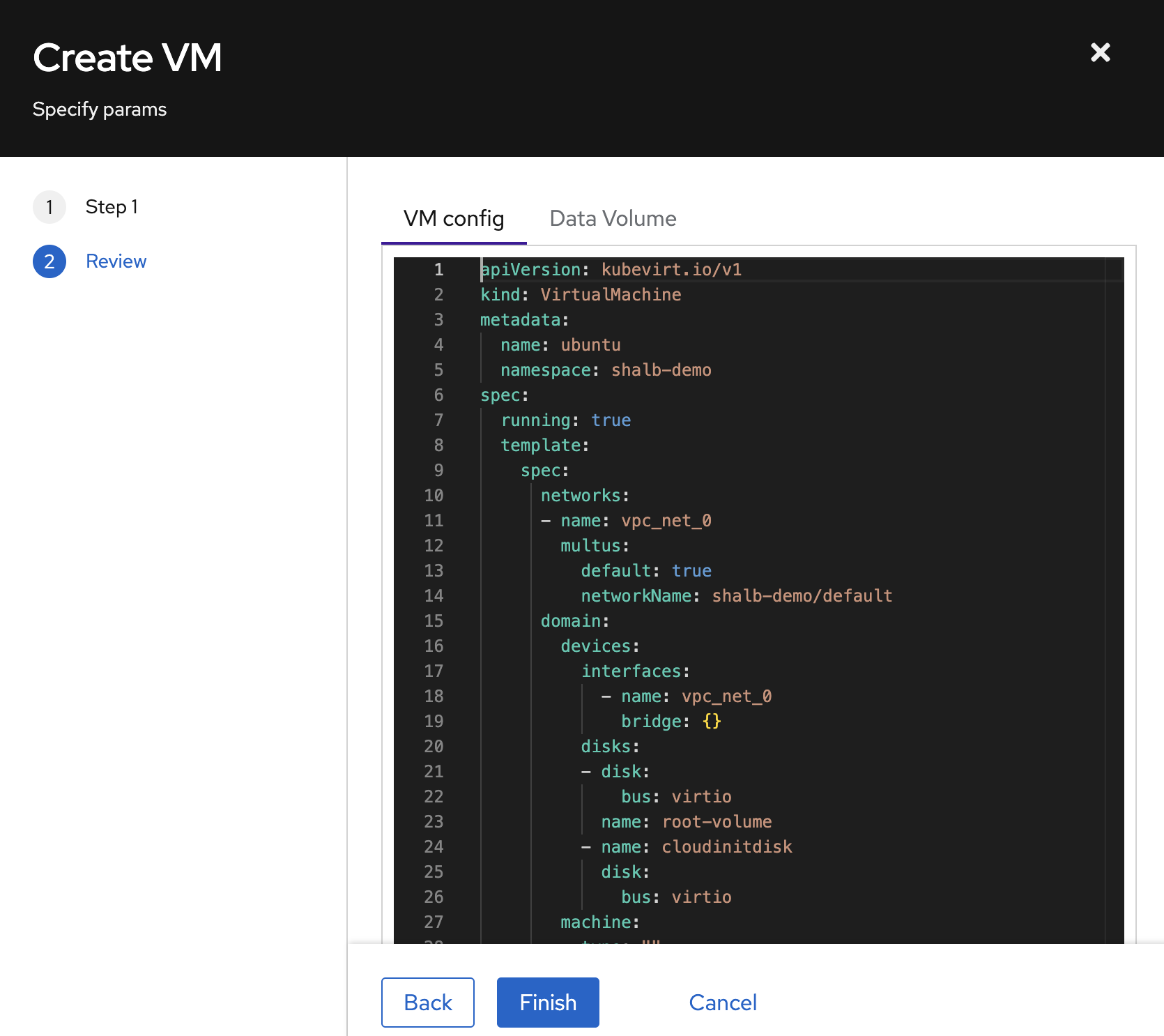
Click Next to review the generated YAML, then Finish to create the VM.
The VM will appear in the list. Wait for the status to reach Running.
Manage VMs
Click a VM to view its details: the OS, the status, the performance metrics, and the conditions.
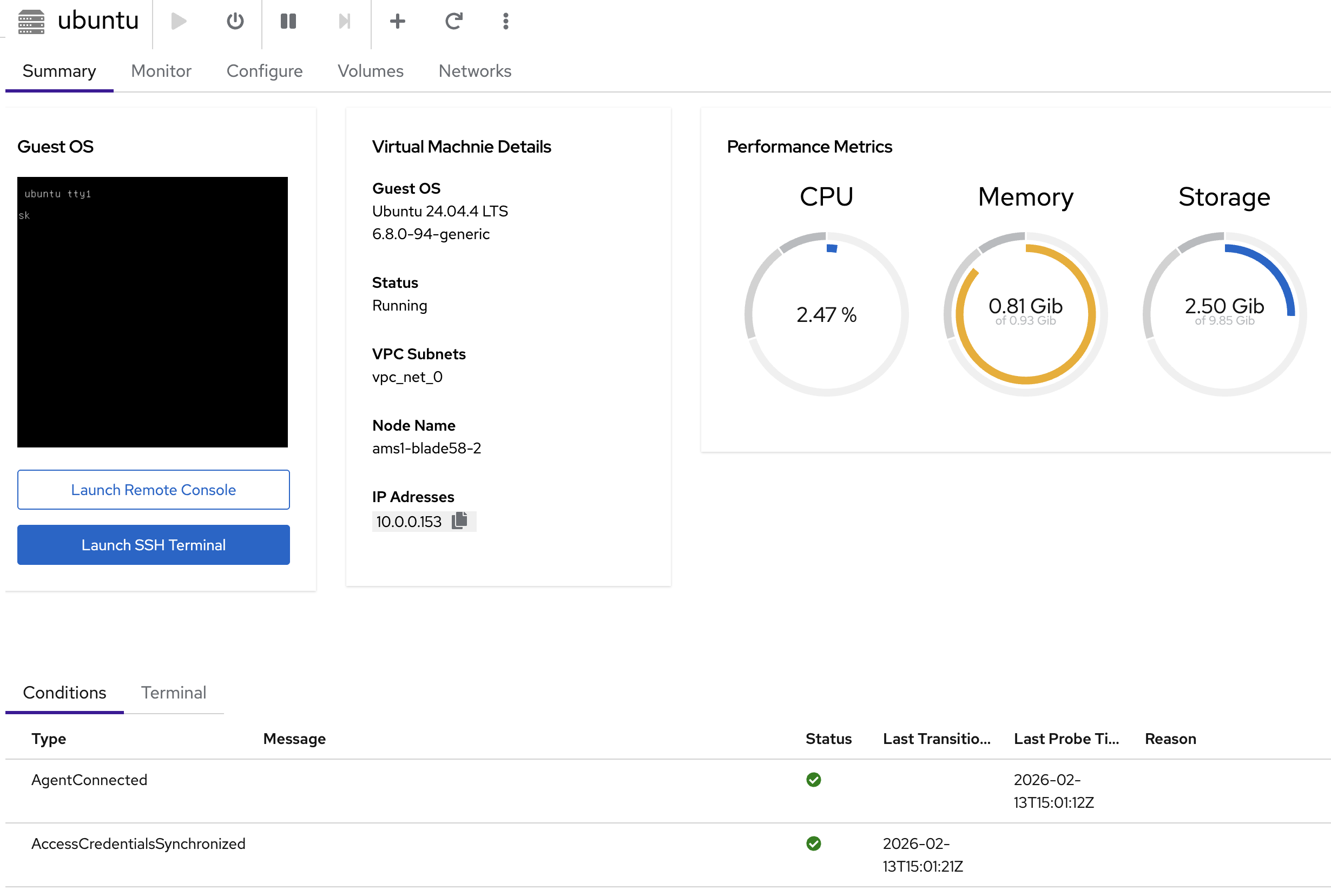
From the details page you can:
- Launch Remote Console: graphical console in the browser
- Launch SSH Terminal: web-based SSH terminal
- Start / Stop / Restart / Delete: manage the VM lifecycle
Create a VM with kubectl
The resources below are created in your active Project. Multus requires a
Kubernetes-qualified network name, so replace <project-backing-namespace>
with the current Project's backing namespace. You can print it with
kubectl config view --minify -o jsonpath='{..namespace}'.
Ubuntu 24.04
Ubuntu 24.04: DataVolume and VirtualMachine manifest
apiVersion: cdi.kubevirt.io/v1beta1
kind: DataVolume
metadata:
  name: ubuntu-root
spec:
  pvc:
    accessModes:
    - ReadWriteOnce
    resources:
      requests:
        storage: 12G
    storageClassName: local-path
  source:
    http:
      url: https://cloud-images.ubuntu.com/noble/current/noble-server-cloudimg-amd64.img
---
apiVersion: kubevirt.io/v1
kind: VirtualMachine
metadata:
  name: ubuntu
spec:
  running: true
  template:
    spec:
      networks:
      - name: vpc_net_0
        multus:
          default: true
          networkName: <project-backing-namespace>/default
      domain:
        cpu:
          cores: 1
        memory:
          guest: 1G
        devices:
          interfaces:
          - name: vpc_net_0
            bridge: {}
          disks:
          - name: root-volume
            disk:
              bus: virtio
          - name: cloudinitdisk
            disk:
              bus: virtio
      accessCredentials:
      - sshPublicKey:
          source:
            secret:
              secretName: authorized-keys-default
          propagationMethod:
            qemuGuestAgent:
              users:
              - ubuntu
      readinessProbe:
        guestAgentPing: {}
        failureThreshold: 10
        initialDelaySeconds: 30
        periodSeconds: 10
        timeoutSeconds: 5
      volumes:
      - name: root-volume
        dataVolume:
          name: ubuntu-root
      - name: cloudinitdisk
        cloudInitNoCloud:
          userData: |
            #cloud-config
            package_update: true
            package_upgrade: true
            packages:
              - qemu-guest-agent
            runcmd:
              - systemctl enable --now qemu-guest-agent
kubectl apply -f ubuntu-vm.yaml
The accessCredentials section injects your SSH public key from the authorized-keys-default secret into the VM through the QEMU guest agent. The users field must match the default user for the OS image (ubuntu for Ubuntu, debian for Debian).
Access a VM with SSH
After the VM is running, you can SSH into it using the private key stored in your project's ssh-keypair-default secret.
Step 1: Extract the SSH private key
# Extract the private key from the secret
kubectl get secret ssh-keypair-default -n <project-backing-namespace> -o jsonpath='{.data.id_rsa}' | base64 -d > /tmp/vm_ssh_key
chmod 600 /tmp/vm_ssh_key
Step 2: Get the VM's IP address
For VMs with a Floating IP (FIP):
# Get the external IP from the FIP resource
kubectl get fip -n <project-backing-namespace>
For VMs without FIP (internal access only):
# Get the internal IP from the VMI
kubectl get vmi <vm-name> -n <project-backing-namespace> -o jsonpath='{.status.interfaces[0].ipAddress}'
Step 3: Connect over SSH
# SSH using the extracted private key
ssh -i /tmp/vm_ssh_key <username>@<ip-address>

# Examples:
# Ubuntu VM: ssh -i /tmp/vm_ssh_key ubuntu@198.51.100.9
# Debian VM: ssh -i /tmp/vm_ssh_key debian@10.0.0.131
- Ubuntu:
ubuntu - Debian:
debian - Windows:
kube-dc
Debian 12
Debian 12: DataVolume and VirtualMachine manifest
apiVersion: cdi.kubevirt.io/v1beta1
kind: DataVolume
metadata:
  name: debian-root
spec:
  pvc:
    accessModes:
    - ReadWriteOnce
    resources:
      requests:
        storage: 20G
    storageClassName: local-path
  source:
    http:
      url: https://cloud.debian.org/images/cloud/bookworm/latest/debian-12-generic-amd64.qcow2
---
apiVersion: kubevirt.io/v1
kind: VirtualMachine
metadata:
  name: debian
spec:
  running: true
  template:
    spec:
      networks:
      - name: vpc_net_0
        multus:
          default: true
          networkName: <project-backing-namespace>/default
      domain:
        cpu:
          cores: 1
        memory:
          guest: 1G
        devices:
          interfaces:
          - name: vpc_net_0
            bridge: {}
          disks:
          - name: root-volume
            disk:
              bus: virtio
          - name: cloudinitdisk
            disk:
              bus: virtio
      accessCredentials:
      - sshPublicKey:
          source:
            secret:
              secretName: authorized-keys-default
          propagationMethod:
            qemuGuestAgent:
              users:
              - debian
      readinessProbe:
        guestAgentPing: {}
        failureThreshold: 10
        initialDelaySeconds: 30
        periodSeconds: 10
        timeoutSeconds: 5
      volumes:
      - name: root-volume
        dataVolume:
          name: debian-root
      - name: cloudinitdisk
        cloudInitNoCloud:
          userData: |
            #cloud-config
            package_update: true
            package_upgrade: true
            packages:
              - qemu-guest-agent
            runcmd:
              - systemctl enable --now qemu-guest-agent
Windows 11
From the Console UI (simplest): pick Windows 11 Enterprise (Golden Image) in the Operating System dropdown, set Root Storage to 70 GB, and create. The console clones a pre-built golden (VirtIO drivers, QEMU guest agent and SSH/RDP already installed) and applies the correct UEFI + TPM + Hyper-V configuration automatically. The VM boots to the Windows lock screen in a few minutes. Open Launch Remote Console to use it.
A Windows golden is ~75 GB, so its clone needs ~75–80 GB of free storage quota in your project. If the project is near its storage limit the clone fails with a quota error. Free space, or request more, before you create a Windows VM.
The kubectl equivalent, showing the UEFI boot, TPM and Hyper-V features Windows requires:
Windows 11: DataVolume and VirtualMachine manifest
apiVersion: cdi.kubevirt.io/v1beta1
kind: DataVolume
metadata:
  name: win-root
spec:
  pvc:
    accessModes:
    - ReadWriteOnce
    resources:
      requests:
        storage: 70G
    storageClassName: local-path
  source:
    http:
      # The golden published to your cluster's S3 OS-image mirror (the same entry
      # the Console UI clones). Replace <your-cluster-domain> with your domain.
      url: https://s3.<your-cluster-domain>/cdi-os-images/private/windows/11/latest/windows11-x64-golden.qcow2
---
apiVersion: kubevirt.io/v1
kind: VirtualMachine
metadata:
  name: win
spec:
  running: true
  template:
    spec:
      networks:
      - name: vpc_net_0
        multus:
          default: true
          networkName: <project-backing-namespace>/default
      domain:
        cpu:
          cores: 2
          model: host-model
        memory:
          guest: 8G
        features:
          acpi: {}
          apic: {}
          hyperv:
            frequencies: {}
            relaxed: {}
            reset: {}
            runtime: {}
            spinlocks:
              spinlocks: 8191
            synic: {}
            vapic: {}
            vpindex: {}
          smm:
            enabled: true
        firmware:
          bootloader:
            efi:
              persistent: true
              secureBoot: false
        devices:
          interfaces:
          - name: vpc_net_0
            bridge: {}
          disks:
          - name: root-volume
            disk:
              bus: virtio
          - name: cloudinitdisk
            disk:
              bus: virtio
          tpm:
            persistent: true
      accessCredentials:
      - sshPublicKey:
          source:
            secret:
              secretName: authorized-keys-default
          propagationMethod:
            qemuGuestAgent:
              users:
              - kube-dc
      readinessProbe:
        guestAgentPing: {}
        failureThreshold: 10
        initialDelaySeconds: 30
        periodSeconds: 10
        timeoutSeconds: 5
      volumes:
      - name: root-volume
        dataVolume:
          name: win-root
      - name: cloudinitdisk
        cloudInitNoCloud:
          userData: ""
Windows cloud images must be pre-built with VirtIO drivers and the QEMU guest agent installed. See Managing OS Images and Windows VM Setup for details on preparing golden images.
Root disk storage
When you create a VM the main storage decision is real infrastructure, not a product tier: where does the root disk live?
| Root disk | What you get | Trade-off |
|---|---|---|
| Local disk (default) | Node-local storage. Best durable-write latency. | Lives on one node. There are no volume snapshots, and a node drain stops the VM. |
| Shared RBD | Shared Ceph-backed storage. Supports snapshots and (optionally) live migration. | Higher durable-write latency for fsync-heavy workloads. |
The decision comes down to one question: do you want the fastest disk writes, or the shared-storage features (snapshots, live migration)? A local disk cannot live-migrate, because it belongs to one node. That limit is inherent, not a policy.
When you pick Shared RBD, two things follow:
- Provisioning: if a prepared golden image exists for the OS, Kube-DC clones it (the VM boots in seconds); otherwise it imports the image on first boot. This is automatic. You do not choose it.
- Enable live migration (checkbox): opt in to let the VM move between nodes during maintenance. Available when the OS has a Block golden and the cluster has ≥2 CPU-compatible nodes; it uses RWX Block mode and a pinned CPU model.
Operators: the cluster-side mechanics (storage tiers, enabling RBD, migration pools, the CPU-headroom rule) are in VM storage tiers & live migration.
Create a live-migratable VM the simple way
- In + Create VM, choose your OS (for example, Ubuntu 24.04) and set CPU / RAM / storage.
- Under Root disk storage, select Shared RBD.
- Tick Enable live migration. If your cluster has more than one CPU pool, pick the Migration pool to pin to.
- Review the summary, click Next → Finish.
The VM comes up live-migratable. During node maintenance, Kube-DC can live-migrate it to another compatible node. Application availability still depends on the health of the guest, the storage, the network, and the migration.
A live migration briefly runs two copies of the VM (source + target) while memory is copied. Keep free CPU quota ≥ the VM's CPU count, or a migration will wait until you free capacity. Prefer smaller HA VMs, or migrate them one at a time.
The generated manifest
Shared RBD with live migration renders explicit KubeVirt resources. There is
no hidden magic and no mutating webhook. Kube-DC also stamps two descriptive labels
(kube-dc.com/vm-profile, kube-dc.com/storage-tier) so the choice is visible in
kubectl, but nothing depends on them. The following spec fields are the source of
truth. You can write the same manifest by hand:
Ubuntu 24.04: live-migratable VM (generated manifest)
# Root disk: an RWX Block clone of the OS's Block golden snapshot.
# accessModes: ReadWriteMany + volumeMode: Block + storageClassName: rbd-vm
# are what make the disk (and therefore the VM) live-migratable.
apiVersion: v1
kind: PersistentVolumeClaim
metadata:
  name: ubuntu-root
  labels:
    kube-dc.com/vm-profile: migratable       # descriptive only
    kube-dc.com/storage-tier: rbd-vm-block    # descriptive only
spec:
  accessModes:
  - ReadWriteMany
  volumeMode: Block
  storageClassName: rbd-vm
  resources:
    requests:
      storage: 12Gi
  dataSource:
    apiGroup: snapshot.storage.k8s.io
    kind: VolumeSnapshot
    name: golden-ubuntu-24-04-block   # the per-project Block golden snapshot
---
apiVersion: kubevirt.io/v1
kind: VirtualMachine
metadata:
  name: ubuntu
  labels:
    kube-dc.com/vm-profile: migratable
    kube-dc.com/storage-tier: rbd-vm-block
spec:
  running: true
  template:
    spec:
      evictionStrategy: LiveMigrate    # drain a node ⇒ live-migrate, don't kill
      networks:
      - name: vpc_net_0
        multus:
          default: true
          networkName: <project-backing-namespace>/default
      domain:
        cpu:
          cores: 1
          model: Skylake-Server-IBRS   # pinned to the migration pool's CPU model
        memory:
          guest: 2G
        devices:
          interfaces:
          - name: vpc_net_0
            bridge: {}
          disks:
          - name: root-volume
            disk:
              bus: virtio
          - name: cloudinitdisk
            disk:
              bus: virtio
      accessCredentials:
      - sshPublicKey:
          source:
            secret:
              secretName: authorized-keys-default
          propagationMethod:
            qemuGuestAgent:
              users:
              - ubuntu
      volumes:
      - name: root-volume
        persistentVolumeClaim:
          claimName: ubuntu-root
      - name: cloudinitdisk
        cloudInitNoCloud:
          userData: |
            #cloud-config
            packages:
              - qemu-guest-agent
            runcmd:
              - systemctl enable --now qemu-guest-agent
The three facts that make it migratable are the PVC's ReadWriteMany + Block +
rbd-vm, the VM's evictionStrategy: LiveMigrate, and the pinned cpu.model. Verify
with:
kubectl get vmi ubuntu -n <project-backing-namespace> \
  -o jsonpath='{range .status.conditions[*]}{.type}={.status} {end}'
# LiveMigratable=True StorageLiveMigratable=True → good
Monitor VM status
# List VMs
kubectl get vm

# Watch a VM come up
kubectl get vm -w

# Check running instances and IP addresses
kubectl get vmi
Expose a VM with a floating IP
Floating IPs (FIPs) map a public address to a VM through one-to-one NAT. The FIP resolves the VM's internal IP through the QEMU guest agent, so you do not look up IP addresses by hand.
apiVersion: kube-dc.com/v1
kind: FIp
metadata:
  name: debian-fip
spec:
  externalNetworkType: public
  vmTarget:
    vmName: debian
    interfaceName: vpc_net_0
kubectl apply -f debian-fip.yaml
Check the assigned external IP:
kubectl get fip
NAME         TARGET IP    EXTERNAL IP    VM       INTERFACE   READY
debian-fip   10.0.0.131   198.51.100.16   debian   vpc_net_0   true
You can now SSH directly to the VM:
ssh debian@198.51.100.16
When using externalNetworkType: public on a FIP, a dedicated public EIP is automatically allocated and bound. You don't need to create an EIP separately.
Expose VM ports with a LoadBalancer Service
For exposing specific ports (for example, SSH on a non-standard port) without a dedicated public IP, use a LoadBalancer service:
apiVersion: v1
kind: Service
metadata:
  name: ubuntu-ssh
  annotations:
    service.nlb.kube-dc.com/bind-on-default-gw-eip: "true"
spec:
  type: LoadBalancer
  selector:
    vm.kubevirt.io/name: ubuntu
  ports:
  - name: ssh
    port: 2222
    targetPort: 22
This binds to the Project's shared EIP. Connect to:
ssh -p 2222 ubuntu@<project-eip>
See the Service exposure for more options including HTTPS routes and dedicated EIPs.
Best practices
- Use SSH keys: the
authorized-keys-defaultsecret is auto-created per project; add your public keys there - Enable guest agent: always include
qemu-guest-agentin cloud-init for proper IP reporting, readiness probes, and SSH key injection - Right-size resources: Linux VMs typically need 1 vCPU / 1 GB RAM minimum; Windows needs 2 vCPUs / 8 GB RAM
- Use readiness probes:
guestAgentPingensures the VM is fully booted before being marked Ready
Troubleshooting
| Issue | Check |
|---|---|
| VM stuck in provisioning | Run kubectl get dv to check the DataVolume download progress |
| VM running but not Ready | Run kubectl get vmi to verify that the guest agent is connected |
| No IP assigned | Check networkName matches your project's default network |
| SSH key not injected | Verify authorized-keys-default secret exists and guest agent is running |
Docker in the VM: git clone / docker pull / apt-get hangs then fails, but curl works | Docker's default MTU (1500) is larger than the project network's 1400. Set {"mtu": 1400} in /etc/docker/daemon.json, then restart Docker. See Network MTU |
# Check events for errors
kubectl get events --sort-by=.lastTimestamp

# Access VM console directly
virtctl console ubuntu

# Find the launcher pod, then inspect its compute-container log
kubectl get pods -l kubevirt.io/domain=ubuntu
kubectl logs <virt-launcher-pod> -c compute
Next steps
- Connecting to VMs: SSH access and remote console options
- VM lifecycle: Start, stop, restart, and snapshot VMs
- Service exposure: Expose VM services to the internet
- Public and floating IPs: Manage IP addresses