Managed Databases
Kube-DC provides managed PostgreSQL and MariaDB databases through the dashboard and Kubernetes API. A one-replica database is standalone; configure two or more replicas when the engine and workload require failover.
Databases Overview
The Databases view shows all databases in your Project. The left sidebar organizes databases by engine type (PostgreSQL and MariaDB). Each database shows its name, engine, version, status, replica count, and age.
Click on any database to expand its details:
- General Information — Name, engine, version, backing namespace, CPU/memory, storage, status, and creation date
- Connection — Internal endpoint, port, database name, replica count, and a quick-connect command
- Credentials — Username with copy button and password with reveal/rotate options
- Actions — View Details or Delete the database
Supported Engines
| Engine | Supported Versions | Default Port | Replication Model |
|---|---|---|---|
| PostgreSQL | 14, 15, 16, 17 | 5432 | Streaming replication (HA) |
| MariaDB | 10.11, 11.4 | 3306 | Primary-replica replication |
Create a Database
Create via Dashboard
- Navigate to your Project → Databases → Overview
- Click + Create Database
- Fill in the creation wizard:
- Name — A unique name for your database (lowercase, alphanumeric, hyphens)
- Engine — PostgreSQL or MariaDB
- Version — Select the engine version
- Database Name — Name of the default database to create
- Username — Database user (defaults to
app) - CPU / Memory — Resource allocation per instance
- Storage — Persistent storage size per instance
- Replicas — Number of instances (1 = standalone, 2+ = high availability)
- Review the summary and click Create
The database will transition through Pending → Provisioning → Ready status. Completion time depends on engine startup, storage provisioning, image availability, and replica count.
Create via kubectl
Create a KdcDatabase resource in the Project's backing namespace:
apiVersion: db.kube-dc.com/v1alpha1
kind: KdcDatabase
metadata:
  name: my-postgres
  namespace: acme-production
spec:
  engine: postgresql
  version: "16"
  databaseName: myapp
  username: app
  cpu: "1"
  memory: 2Gi
  storage: 20Gi
  replicas: 2
kubectl apply -f my-postgres.yaml
kubectl get kdcdatabases -n acme-production
Database Detail View
Click View Details on any database to access the full management interface with five tabs: Summary, Connection, Backups, Configure, and YAML.
Summary
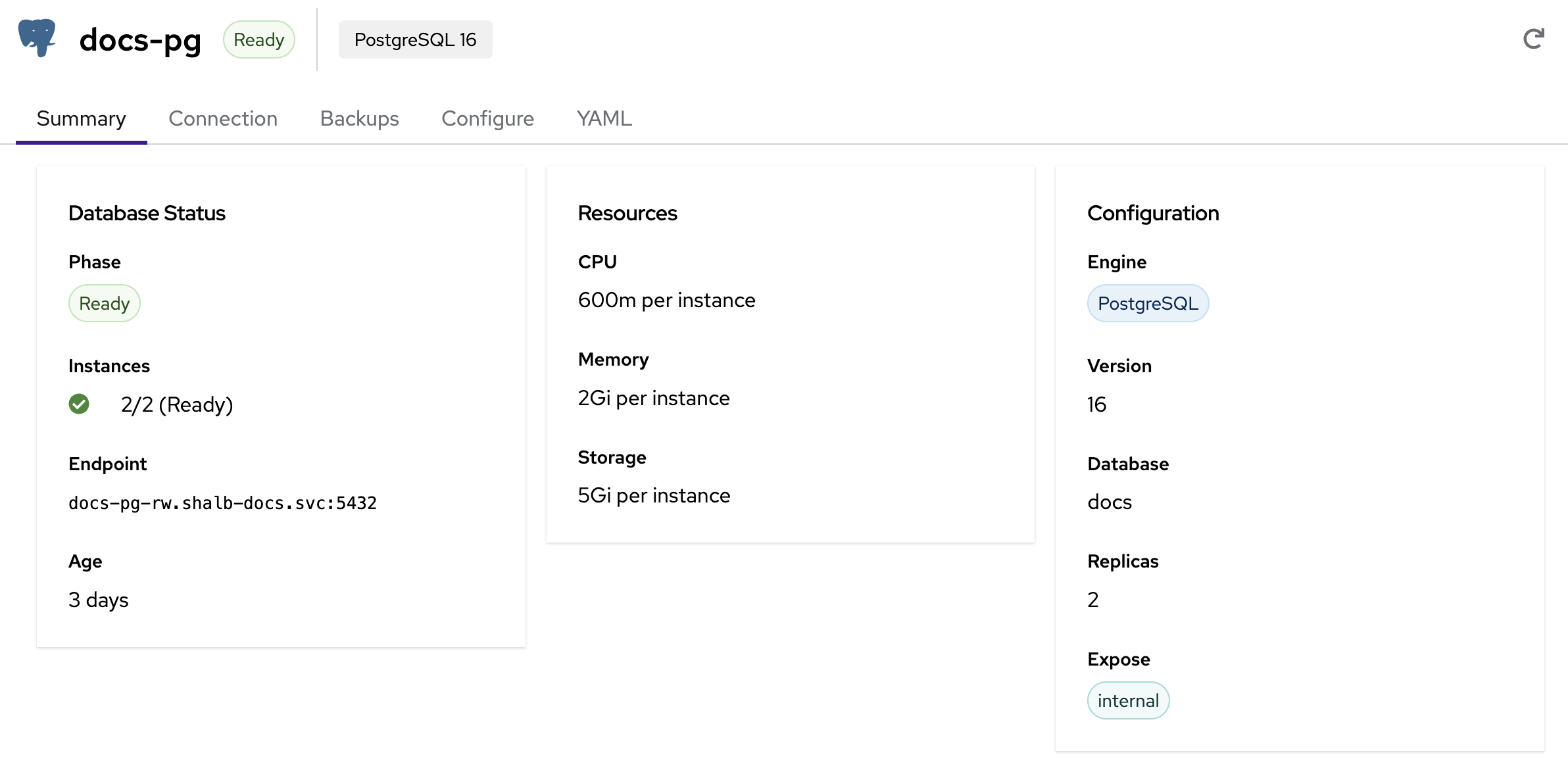
The Summary tab provides a quick overview of your database:
- Database Status — Current phase (Ready, Provisioning, Failed), instance count, internal endpoint, and age
- Resources — CPU, memory, and storage allocated per instance
- Configuration — Engine type, version, database name, replica count, and exposure mode
Connection
The Connection tab shows everything you need to connect to your database:
- Endpoint — Internal Project endpoint (
ClusterIP). Use it from a workload that can reach the Project Service, or configure LoadBalancer exposure for a workstation - Database credentials — Application username, password (click to reveal or rotate), database name, and port
- Credential Policies footer — Shows the count of credential policies managing this database and links to the Credentials tab for policy-driven rotation (see Credential Policies below)
When a credential policy manages the application user (typically
app), the Connection tab disables the Reveal/Rotate buttons and points you at
the Credentials tab. If Secret sync is enabled for that policy, its projected
Kubernetes Secret is the source of truth for the current password. If sync is
disabled, an authorized project-manager or admin retrieves the current value
through kube-dc db credentials get --show-password. The engine Secret
(<db>-app for PostgreSQL or <db>-password for MariaDB) stays at its
provisioning-time value after the first policy rotation and should not be used
directly.
Connecting from an application workload in the same Project:
# PostgreSQL
psql -h my-postgres-rw.acme-production.svc -p 5432 -U app -d myapp

# MariaDB, standalone (replicas: 1)
mysql -h my-mariadb.acme-production.svc -P 3306 -u app -p myapp

# MariaDB, high availability (replicas: 2+)
mysql -h my-mariadb-primary.acme-production.svc -P 3306 -u app -p myapp
The password is auto-generated and stored in a Kubernetes Secret. You can view it on the Connection tab or retrieve it via kubectl:
# PostgreSQL
kubectl get secret my-postgres-app -n acme-production -o jsonpath='{.data.password}' | base64 -d

# MariaDB
kubectl get secret my-mariadb-password -n acme-production -o jsonpath='{.data.password}' | base64 -d
Important: read these engine Secrets only when no credential policy manages the user. If a DatabaseCredentialPolicy exists for this database's user (typically app), the engine Secret stays at the provisioning-time password and falls out of sync after the first rotation. In that case, read the DBCP-projected Secret named on the Credentials tab instead.
Connecting from Application Workloads
The most common pattern is mounting the database password from the auto-created Kubernetes Secret and setting connection details as environment variables in your Deployment:
PostgreSQL:
env:
  - name: DB_PASSWORD
    valueFrom:
      secretKeyRef:
        name: my-postgres-app      # Secret: {db-name}-app
        key: password
  - name: DB_HOST
    value: "my-postgres-rw.acme-production.svc"
  - name: DB_PORT
    value: "5432"
  - name: DB_USER
    value: "app"
  - name: DB_NAME
    value: "myapp"
  - name: DATABASE_URL             # Connection string (many frameworks use this)
    value: "postgresql://$(DB_USER):$(DB_PASSWORD)@$(DB_HOST):$(DB_PORT)/$(DB_NAME)"
MariaDB:
env:
  - name: DB_PASSWORD
    valueFrom:
      secretKeyRef:
        name: my-mariadb-password   # Secret: {db-name}-password
        key: password
  - name: DB_HOST
    # Use my-mariadb.acme-production.svc for a one-replica database.
    value: "my-mariadb-primary.acme-production.svc"
  - name: DB_PORT
    value: "3306"
  - name: DB_USER
    value: "app"
  - name: DB_NAME
    value: "myapp"
- PostgreSQL:
{db-name}-app(key:password) - MariaDB:
{db-name}-password(key:password)
These engine Secrets are created at provisioning time. They are NOT updated when a credential policy rotates the password: once a DatabaseCredentialPolicy manages the user, the projected Secret named on the Credentials tab is the source of truth for the current password. Use the engine Secret only when no policy manages the user, or for break-glass scenarios — contact your cluster operator if you need help recovering from a state where neither the policy Secret nor the engine Secret has a working password.
External Access
By default, the database Service is a ClusterIP on the Project network. It is
intended for workloads that can reach the Project's internal Service address; it
is not a workstation or internet endpoint.
The dashboard creation wizard offers Internal and LoadBalancer exposure. Use LoadBalancer for the supported console-to-workstation path. Gateway exposure is an advanced, manifest-only compatibility option for a narrow PostgreSQL 17 client mode.
LoadBalancer + EIP (supported external path)
Set Exposure to LoadBalancer in the creation wizard, or declare
spec.expose.type: loadbalancer:
spec:
  expose:
    type: loadbalancer
The platform provisions a LoadBalancer Service and EIP. Read the endpoint from the database status:
kubectl get kdcdatabase my-postgres -n acme-production \
  -o jsonpath='{.status.externalEndpoint}'
# Example: 100.65.0.42:5432
Use that IP and the engine port from a workstation database client. Remove external exposure when it is no longer needed.
Gateway (advanced PostgreSQL 17 compatibility)
A Gateway database endpoint is an SNI-based TLSRoute, not a general-purpose
TCP proxy. It can select a backend only when the connection starts with a
standard TLS handshake containing SNI. Current compatibility is narrow:
- PostgreSQL 17 works when both the server and client support direct TLS and
the client sets
sslnegotiation=direct. - PostgreSQL 14-16 clients use PostgreSQL's protocol-specific SSL negotiation,
which the
TLSRoutecannot inspect. - MariaDB sends its server handshake before TLS starts, so it is not compatible with this Gateway path.
Use a LoadBalancer for PostgreSQL 14-16, MariaDB, or any client that cannot
start with a TLS ClientHello. To use the compatible PostgreSQL 17 path, create
the database by manifest with spec.expose.type: gateway:
apiVersion: db.kube-dc.com/v1alpha1
kind: KdcDatabase
metadata:
  name: my-postgres
  namespace: acme-production
spec:
  engine: postgresql
  version: "17"
  databaseName: myapp
  username: app
  cpu: "1"
  memory: 2Gi
  storage: 20Gi
  replicas: 2
  expose:
    type: gateway
The public listener is port 443:
my-postgres-db-acme-production.kube-dc.cloud:443
Use a PostgreSQL 17 or newer client and request direct TLS negotiation:
psql "host=my-postgres-db-acme-production.kube-dc.cloud port=443 dbname=myapp user=app sslmode=require sslnegotiation=direct"
The current controller reports the engine port (5432) in
status.externalEndpoint, and the Connection tab displays that value. Keep
the hostname but use public port 443 for Gateway exposure.
This path passes through the database engine's certificate; it does not issue a
certificate for the public hostname. sslmode=require encrypts the connection
but does not verify that hostname. Use a LoadBalancer on a trusted network, or
an operator-configured database certificate that covers the public hostname,
when server identity must be verified.
| Method | Use Case | Requires |
|---|---|---|
| Internal | Application workloads on the Project network | No external exposure |
| LoadBalancer | Workstation, database GUI, or direct client access | spec.expose.type: loadbalancer |
| Gateway | Advanced PostgreSQL 17 direct-TLS compatibility | Manifest, PG 17+, sslnegotiation=direct |
Standard Project roles do not include Kubernetes pod port-forward. Platform operators may grant separate diagnostic RBAC, but port-forward is not a tenant database connection method.
Credential Policies
The Credentials tab manages DatabaseCredentialPolicy (DBCP) resources for automatic password rotation. When Secret sync is enabled, the platform projects the current credential into a stable Kubernetes Secret in the Project. When sync is disabled, authorized users retrieve it through the CLI or API. Applications still need to reload mounted files or restart Pods that consume credentials through environment variables after rotation, and an authorized user can trigger an on-demand rotation when needed.
The default is no policy: at provisioning time the engine's primary user (app) receives a fixed password. It changes only after an authorized user explicitly rotates it. Enabling a policy switches that user to managed rotation.
When to enable
- Workloads run for months and you want passwords to roll on a schedule (compliance, defence-in-depth).
- Many workloads share a database user and pinning a fixed password in image config would be disruptive on every rotation — the projected Secret name stays stable across rotations. Pods pick up the new value on restart (env-vars sourced via
valueFrom.secretKeyRefare resolved at pod start and don't live-update); workloads that mount the Secret as files can re-read on rotation via their connection-pool's reload path. - You want a separate, fully managed Kubernetes Secret for application
workloads, distinct from the engine Secret (
<db>-appfor PostgreSQL or<db>-passwordfor MariaDB).
Create via the Dashboard
The optional final wizard step on Create Database offers Enable automatic credential rotation. When toggled on:
- The password itself is server-generated by OpenBao — no input field (matches the AWS RDS / GCP Cloud SQL "managed credentials" pattern).
- Rotation interval defaults to
30d. Format:30d,12h,1h30m. Minimum supported interval is1m— values below1m(or unparseable) are not honoured and the controller falls back to the30ddefault. Use1mor longer. - Target Secret name defaults to
<dbname>-app-credentials. Workloads reference itspassword/username/dsnkeys.
The wizard creates the policy as a follow-on call after the database is provisioned. If the database create succeeds but the policy create fails (rare — usually OpenBao is not yet ready), a warning notification points you at the Credentials tab to retry; the database itself is fine.
Once a database exists, open its detail view → Credentials tab → Create policy to add a policy to an existing database. From here you can also rotate / reveal / delete existing policies and see the last-rotated timestamp + status.
Create a credential policy via kubectl
apiVersion: security.kube-dc.com/v1alpha1
kind: DatabaseCredentialPolicy
metadata:
  name: my-postgres-app-rotated
  namespace: acme-production
spec:
  databaseRef:
    name: my-postgres
  mode: static-rotated
  username: app
  rotation:
    interval: 30d
  sync:
    enabled: true
    targetSecretName: my-postgres-app-credentials
kubectl apply -f dbcp.yaml

# Wait for Ready
kubectl -n acme-production get dbcp my-postgres-app-rotated \
  -o jsonpath='{.status.conditions[?(@.type=="Ready")].reason}{"\n"}'
# expect: StaticRotated

# Inspect the projected Secret (keys: database, dsn, engine, host, port, username, password)
kubectl -n acme-production get secret my-postgres-app-credentials -o yaml
Use the projected Secret from workloads
apiVersion: apps/v1
kind: Deployment
metadata:
  name: orders-api
spec:
  selector:
    matchLabels:
      app: orders-api
  template:
    metadata:
      labels:
        app: orders-api
    spec:
      containers:
        - name: api
          image: ghcr.io/example/orders-api:1.0
          env:
            - name: DATABASE_URL
              valueFrom:
                secretKeyRef:
                  name: my-postgres-app-credentials   # DBCP-projected
                  key: dsn
            # Or break the connection string into pieces:
            - name: DB_HOST
              valueFrom: { secretKeyRef: { name: my-postgres-app-credentials, key: host } }
            - name: DB_PORT
              valueFrom: { secretKeyRef: { name: my-postgres-app-credentials, key: port } }
            - name: DB_USER
              valueFrom: { secretKeyRef: { name: my-postgres-app-credentials, key: username } }
            - name: DB_PASSWORD
              valueFrom: { secretKeyRef: { name: my-postgres-app-credentials, key: password } }
            - name: DB_NAME
              valueFrom: { secretKeyRef: { name: my-postgres-app-credentials, key: database } }
Workloads pick up rotated passwords on the next pod restart (or via your app's pg_reconnect / connection-pool refresh logic). The projected Secret name stays stable across rotations; only its password field changes.
Force a rotation now
# From any workstation with your Project kubeconfig; pod exec is blocked in Projects:
kube-dc db credentials rotate my-postgres-app-rotated
The Rotate button in the Credentials tab performs the same audited action. The backend normally nudges reconciliation within seconds; the periodic fallback can take up to five minutes before a synced Secret is refreshed.
Delete a policy
Deleting a DBCP removes its projected Secret when the controller owns it. For
PostgreSQL's default app user, the finalizer first attempts to copy OpenBao's
current password back to <db>-app. MariaDB's engine Secret is named
<db>-password, which the current finalizer does not re-sync. Before deleting a
MariaDB policy, ask your cluster operator to copy the current password into a
replacement Secret or reset the database user to a known password, then migrate
the workloads. Deleting the policy first can leave no usable credential Secret.
kubectl delete dbcp my-postgres-app-rotated -n acme-production
# OR via CLI:
kube-dc db credentials delete my-postgres-app-rotated --yes
Mode reference
| Mode | What it does | Phase 1 status |
|---|---|---|
static-rotated | OpenBao rotates the password of an EXISTING user on a fixed schedule | Default, fully supported (UI + CLI + kubectl) |
dynamic | Reserved for short-lived credentials | Not supported; the controller reports Ready=False/DynamicModeDeferred and the issue API returns 501 |
Operator-level concerns (break-glass superuser, OpenBao policy refresh, troubleshooting 28P01 authentication errors) are handled by your cluster operator. If your project hits one of these states — typically symptoms like every pod failing to connect with password authentication failed for user "app" after a rotation — open a support ticket with the cluster operator rather than trying to recover by hand from the engine Secret.
Backups
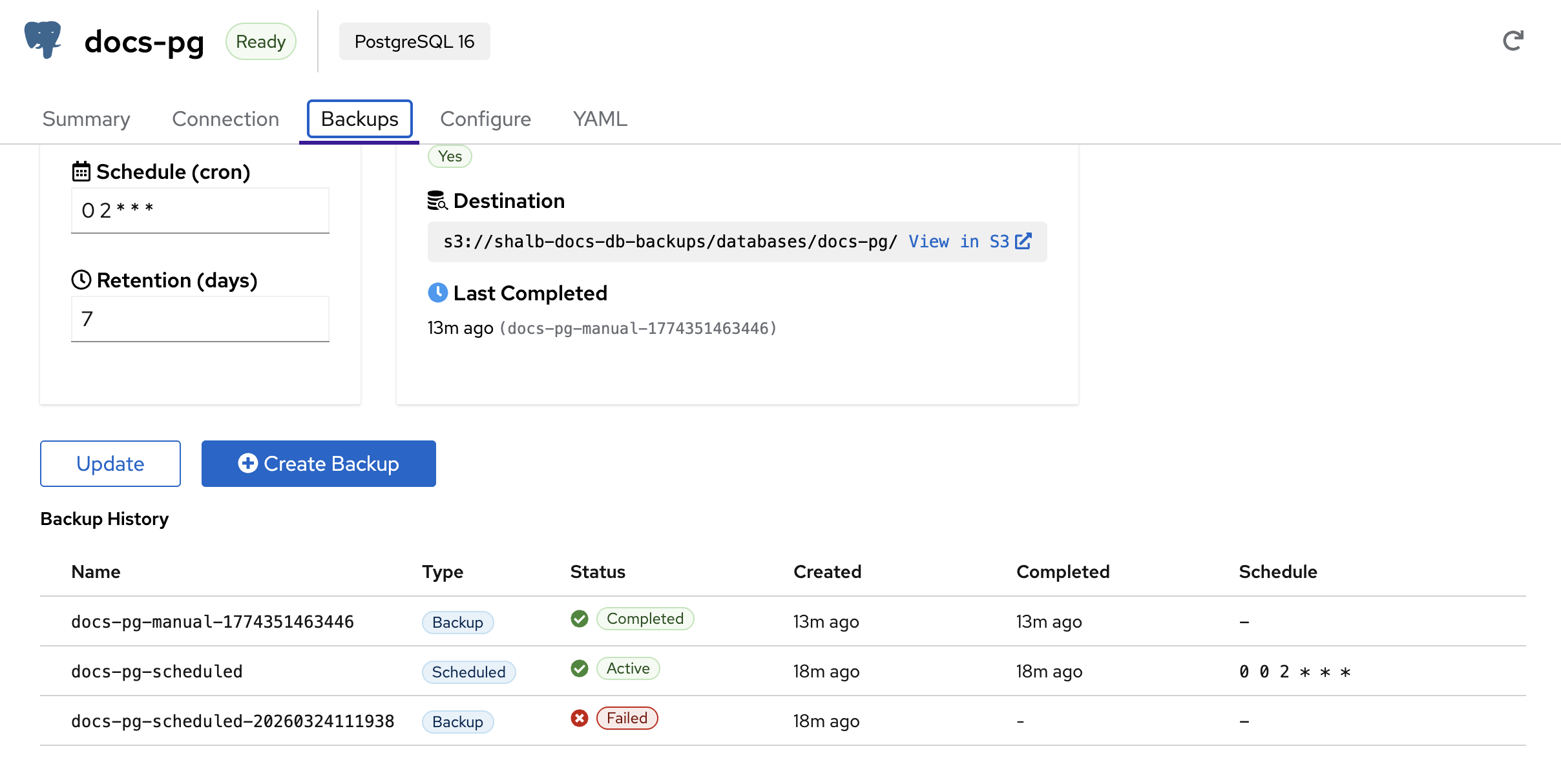
The Backups tab manages both scheduled and on-demand backups:
- Schedule (cron) — Set a cron expression for automatic backups (e.g.,
0 2 * * *for daily at 2 AM) - Retention (days) — How many days to keep backups before automatic cleanup
- Destination — S3 bucket path where backups are stored, with a direct link to browse in S3
- Last Completed — Timestamp and name of the most recent successful backup
Backup History shows each backup's name, engine-specific type, status,
creation time, completion time, and schedule. PostgreSQL uses Backup and
Scheduled; MariaDB uses Physical and Job.
On-Demand Backups
Click Create Backup to trigger an immediate backup. It appears as Backup
for PostgreSQL or Physical for MariaDB and updates as it progresses.
Scheduled Backups
Configure automatic backups by setting a cron schedule and retention period, then click Update. Common schedules:
| Schedule | Description |
|---|---|
0 2 * * * | Daily at 2:00 AM |
0 0 * * 0 | Weekly on Sunday at midnight |
0 */6 * * * | Every 6 hours |
All backups are stored in S3-compatible object storage and can be browsed from the View in S3 link.
Configure
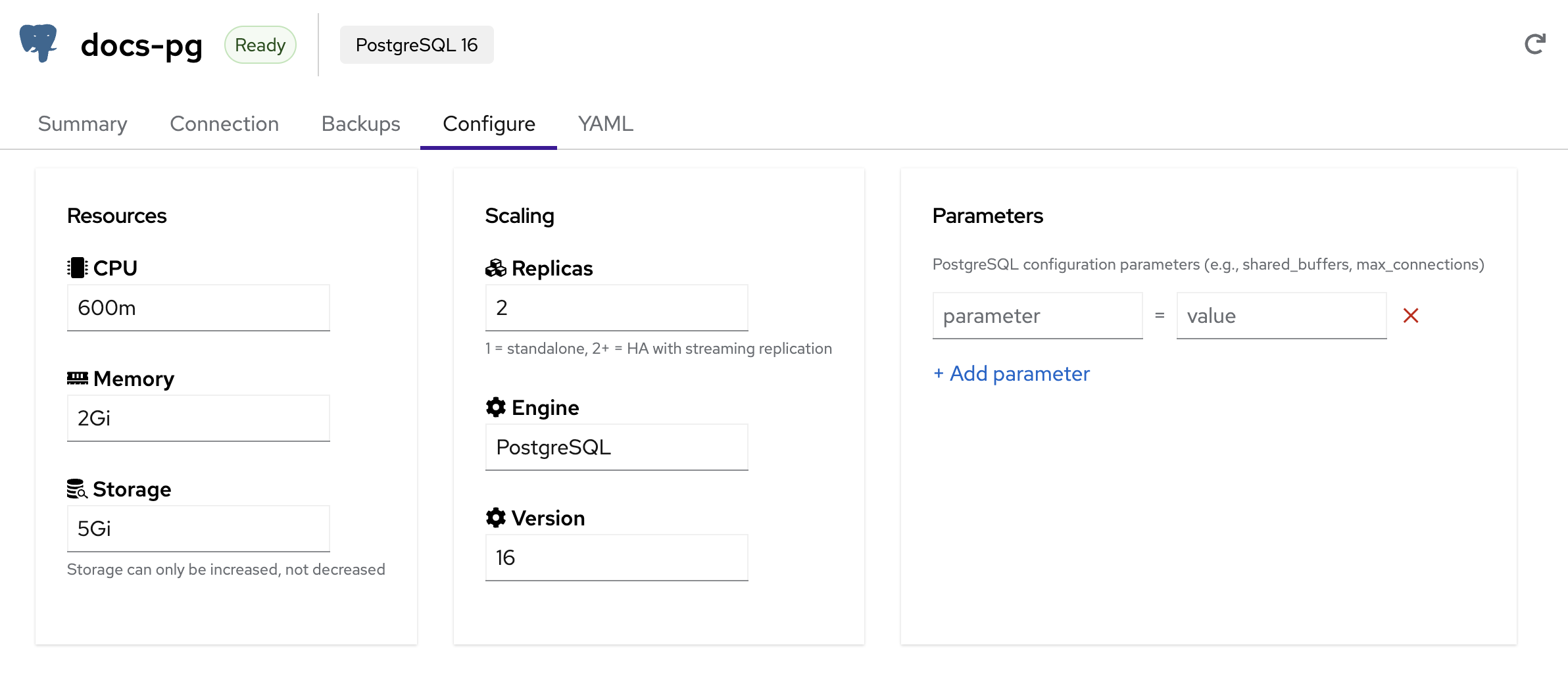
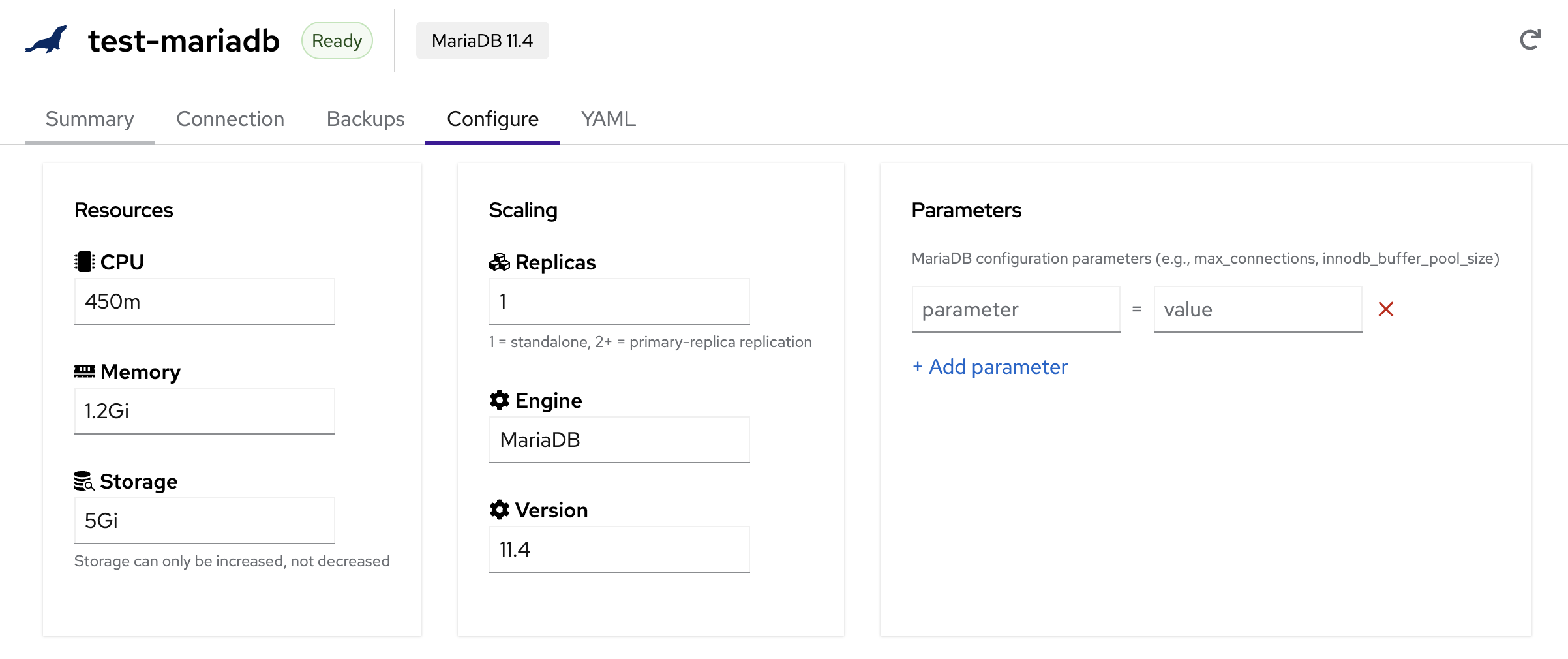
The Configure tab lets you adjust database resources, scaling, and engine parameters. Some changes restart instances or trigger failover; applications should reconnect and retry.
PostgreSQL Configuration:
MariaDB Configuration:
Resources
- CPU — CPU allocation per instance (e.g.,
600m,1,2) - Memory — Memory allocation per instance (e.g.,
1Gi,2Gi,4Gi) - Storage — Persistent storage per instance. Storage can only be increased, not decreased
Scaling
- Replicas — Number of database instances
- 1 = Standalone (single instance, no replication)
- 2+ = High Availability with automatic failover
- PostgreSQL uses streaming replication; MariaDB uses primary-replica replication
Engine & Version
- Engine — Read-only. The engine type (PostgreSQL or MariaDB) cannot be changed after creation
- Version — Select a newer supported version. Treat every version change as a maintenance operation and verify a current backup first.
Kube-DC exposes PostgreSQL versions by major number (14 through 17). A
PostgreSQL version change is therefore a major upgrade: CloudNativePG shuts
down the entire cluster and runs an offline in-place pg_upgrade. All replicas
are unavailable until it completes. Test application and extension
compatibility, take a full backup before the change, and take a new base backup
afterward; point-in-time recovery cannot cross a major-version boundary.
MariaDB version changes also restart database instances. Plan a maintenance window even with replicas because availability depends on replication health and operator progress.
Parameters
Add engine-specific configuration parameters as key-value pairs:
- PostgreSQL —
shared_buffers,max_connections,work_mem,effective_cache_size, etc. - MariaDB —
max_connections,innodb_buffer_pool_size,query_cache_size, etc.
Click + Add parameter to add entries, then Update to apply changes.
YAML
The YAML tab shows the raw KdcDatabase resource definition. You can use this to inspect the full configuration or as a template for creating similar databases via kubectl.
Backup and Restore via kubectl
The dashboard wraps the same primitives that you can drive directly with kubectl. Both engines store backups in the Project's S3 bucket (<backing-namespace>-db-backups, created on first use). Recovery uses the engines' native bootstrap-time mechanisms — CNPG's bootstrap.recovery and mariadb-operator's bootstrapFrom — wired through Kube-DC's KdcDatabase so you don't manage them by hand.
Configure scheduled backups
Backup schedule and retention live on spec.backup of the KdcDatabase. The s3Endpoint and credentials are derived from your project's bucket if you don't override them.
apiVersion: db.kube-dc.com/v1alpha1
kind: KdcDatabase
metadata:
  name: my-postgres
  namespace: acme-production
spec:
  engine: postgresql
  version: "16"
  databaseName: myapp
  username: app
  cpu: "1"
  memory: 2Gi
  storage: 20Gi
  replicas: 2
  backup:
    enabled: true
    schedule: "0 2 * * *"   # daily at 02:00
    retentionDays: 7
Apply, then verify the backup pipeline is healthy:
kubectl apply -f my-postgres.yaml

# PostgreSQL: scheduled CNPG ScheduledBackup + the recoverability window
kubectl get scheduledbackup -n acme-production
kubectl get cluster.postgresql.cnpg.io my-postgres -n acme-production \
  -o jsonpath='{.status.firstRecoverabilityPoint}{"\n"}'

# MariaDB: scheduled PhysicalBackup
kubectl get physicalbackup -n acme-production
Take an on-demand backup
A scheduled backup runs on its cron, but you can take a snapshot any time by creating a one-off CR alongside the KdcDatabase. These are the same CRs the Take snapshot now button creates.
Names must be unique within the Project's backing namespace; the recipes below pipe the timestamp through envsubst so each invocation gets a fresh name.
PostgreSQL — create a cnpg.io/Backup:
TS=$(date +%s) envsubst <<'YAML' | kubectl apply -f -
apiVersion: postgresql.cnpg.io/v1
kind: Backup
metadata:
  name: my-postgres-snap-${TS}
  namespace: acme-production
  labels:
    kube-dc.com/database: my-postgres
    kube-dc.com/backup-type: manual
spec:
  cluster:
    name: my-postgres
  method: barmanObjectStore
YAML
MariaDB — create a k8s.mariadb.com/PhysicalBackup:
TS=$(date +%s) envsubst <<'YAML' | kubectl apply -f -
apiVersion: k8s.mariadb.com/v1alpha1
kind: PhysicalBackup
metadata:
  name: my-mariadb-snap-${TS}
  namespace: acme-production
  labels:
    kube-dc.com/database: my-mariadb
    kube-dc.com/backup-type: manual
spec:
  mariaDbRef:
    name: my-mariadb
  target: PreferReplica   # falls back to primary when no replica is promoted
  backoffLimit: 3
  storage:
    s3:
      bucket: acme-production-db-backups
      prefix: databases/my-mariadb
      endpoint: s3.kube-dc.cloud
      tls:
        enabled: true
      accessKeyIdSecretKeyRef:
        name: db-backups
        key: AWS_ACCESS_KEY_ID
      secretAccessKeySecretKeyRef:
        name: db-backups
        key: AWS_SECRET_ACCESS_KEY
YAML
Always set target: PreferReplica on a MariaDB PhysicalBackup. The mariadb-operator's default is strict Replica, which loops forever waiting for a replica-labeled pod when replication has not converged.
List backups available for restore
# PostgreSQL — completed barman backups (the names you reference for recovery)
kubectl get backup.postgresql.cnpg.io -n acme-production \
  -l '!cnpg.io/scheduled-backup' \
  -o 'custom-columns=NAME:.metadata.name,PHASE:.status.phase,BEGIN:.status.beginWal,END:.status.endWal,STOPPED:.status.stoppedAt'

# MariaDB — physical backups
kubectl get physicalbackup -n acme-production \
  -o 'custom-columns=NAME:.metadata.name,COMPLETE:.status.conditions[?(@.type=="Complete")].status,LAST_RUN:.status.lastScheduleTime'
Choose a restore path
| Path | When | Engine handle |
|---|---|---|
| New-name (recommended) | Verify the recovery first, swap apps over once you're sure | KdcDatabase.spec.restoreFrom on a fresh resource |
| In-place (destructive) | You're sure; want to keep the same name and connection details | kube-dc.com/restore-from annotation on the existing KdcDatabase |
Both paths target the same engine primitives — only the wrapper-level decision differs.
New-name restore (safe path)
Create a sibling KdcDatabase whose engine cluster bootstraps from a chosen backup. The original keeps running until you cut over.
apiVersion: db.kube-dc.com/v1alpha1
kind: KdcDatabase
metadata:
  name: my-postgres-restored
  namespace: acme-production
spec:
  engine: postgresql
  version: "16"
  databaseName: myapp
  username: app
  cpu: "1"
  memory: 2Gi
  storage: 20Gi
  replicas: 2
  restoreFrom:
    backupName: my-postgres-snap-1778356023118   # cnpg.io/Backup CR name
    sourceDatabaseName: my-postgres              # audit/UI display
    # Optional PostgreSQL PITR — replay WAL up to this RFC 3339 instant.
    # MariaDB targetTime requires continuous binlog archival, which the
    # platform does not currently provide.
    # targetTime: "2026-05-09T19:30:00Z"
kubectl apply -f my-postgres-restored.yaml
kubectl get kdcdatabase my-postgres-restored -n acme-production -w
The new database goes through Pending → Provisioning → Ready. Once Ready, point your app at my-postgres-restored-rw.acme-production.svc and delete the original whenever you're satisfied.
For MariaDB the shape is the same:
spec:
  engine: mariadb
  # … sizing identical to the source …
  restoreFrom:
    backupName: my-mariadb-snap-1778356023118   # k8s.mariadb.com/PhysicalBackup name
    sourceDatabaseName: my-mariadb
In-place restore (destructive)
Set the trigger annotation on the existing KdcDatabase. db-manager will delete the underlying engine cluster + PVCs and re-bootstrap from the chosen backup. Live data is gone for the duration — the database is unavailable until restore completes (typically a few minutes).
# PostgreSQL: restore my-postgres in place from a known-good backup
kubectl annotate kdcdatabase my-postgres -n acme-production \
  kube-dc.com/restore-from=my-postgres-snap-1778356023118 --overwrite

# Optional PostgreSQL PITR — same annotation set, plus a target time
kubectl annotate kdcdatabase my-postgres -n acme-production \
  kube-dc.com/restore-from=my-postgres-snap-1778356023118 \
  kube-dc.com/restore-target-time=2026-05-09T19:30:00Z --overwrite
The controller clears both annotations once status.restore.phase reaches Succeeded.
Monitor a restore
# Phase + last message — set by db-manager
kubectl get kdcdatabase my-postgres -n acme-production \
  -o jsonpath='{.status.restore.phase} — {.status.restore.message}{"\n"}'

# RestoreReady condition — True when finished, False with a reason while running
kubectl get kdcdatabase my-postgres -n acme-production \
  -o jsonpath='{.status.conditions[?(@.type=="RestoreReady")].status}{"  "}{.status.conditions[?(@.type=="RestoreReady")].message}{"\n"}'

# Engine-side progress — CNPG/MariaDB conditions
kubectl get cluster.postgresql.cnpg.io my-postgres -n acme-production \
  -o jsonpath='{range .status.conditions[*]}{.type}={.status} ({.message}){"\n"}{end}'
Phases you'll see while the in-place flow runs: an empty restore becomes InProgress (engine teardown → engine recreation → recovery), then transitions to Succeeded (annotation cleared, condition True) or Failed (annotation kept so you can retry).
PostgreSQL point-in-time recovery
CNPG ships continuous WAL archives alongside base backups. Read the recoverable window straight off the Cluster:
kubectl get cluster.postgresql.cnpg.io my-postgres -n acme-production \
  -o jsonpath='floor: {.status.firstRecoverabilityPoint}{"\n"}last: {.status.lastSuccessfulBackup}{"\n"}'
# floor: 2026-05-02T02:00:08Z
# last: 2026-05-09T02:00:10Z
Any RFC 3339 timestamp between the floor and now is a valid targetTime while the ContinuousArchiving condition is True and enough WAL has actually been archived. If continuous archiving is unhealthy, the safe ceiling drops back to lastSuccessfulBackup.
Kube-DC sets archive_timeout=5min on every PostgreSQL cluster by default, which forces WAL switch + S3 upload every 5 minutes regardless of activity. On a database with no traffic, that's the limit of how fine-grained PITR can be — recovery to a target time inside a 5-minute window where no WAL boundary fell will fail with "recovery ended before configured recovery target was reached". Override archive_timeout in spec.parameters if you need finer recovery on quiet clusters. Active databases generate WAL constantly and get sub-second PITR granularity for free.
# Verify continuous archiving is healthy before you rely on PITR
kubectl get cluster.postgresql.cnpg.io my-postgres -n acme-production \
  -o jsonpath='{.status.conditions[?(@.type=="ContinuousArchiving")].status}{"\n"}'
# True
High Availability
When running with 2 or more replicas, your database operates in high-availability mode:
- PostgreSQL — One primary + one or more streaming replicas. If the primary fails, a replica is automatically promoted. The read-write endpoint (
-rwsuffix) always points to the current primary - MariaDB — One primary + one or more replicas with automatic failover. The primary service endpoint always routes to the active primary
Recommended configuration for production:
| Setting | Value | Reason |
|---|---|---|
| Replicas | 2+ | Enables automatic failover |
| CPU | 500m+ | Avoids throttling under load |
| Memory | 1Gi+ | Prevents OOM kills |
| Storage | 10Gi+ | Room for data growth |
Deleting a Database
Delete via Dashboard
- Navigate to your database in the sidebar
- Click the database row to expand details
- Click Delete
- Confirm the deletion
Delete via kubectl
kubectl delete kdcdatabase my-postgres -n acme-production
Deleting a database permanently removes all data, replicas, and associated resources. This action cannot be undone. Make sure you have a recent backup before deleting.
Troubleshooting
Database stuck in Provisioning
The database may be waiting for storage provisioning or resource allocation. Check events:
kubectl describe kdcdatabase my-postgres -n acme-production
kubectl get events -n acme-production --field-selector involvedObject.name=my-postgres
Cannot connect to database
- Verify the database status is Ready with all replicas running
- From the same Project, use the internal Service; from outside it, use a configured Gateway or LoadBalancer endpoint
- Check that the endpoint, port, username, and password are correct (use the Connection tab)
- A full Service DNS name only identifies the Service; it does not create cross-Project reachability. Cross-Project access requires explicit exposure or operator-approved private routing
Backup failed
Check the backup history for error details. Common causes:
- S3 storage credentials are misconfigured
- Insufficient S3 storage quota
- Database is not in Ready state