CLI, console, and IDE access
This guide explains how to install and use the kube-dc CLI for command-line
access, for the web console, and for IDE integration with Projects and Managed
Clusters.
Overview
The kube-dc CLI authenticates you to Kubernetes through your browser. It
handles:
- Browser-based login: no password is entered in the terminal
- Automatic token refresh: short-lived access tokens refresh while the cached session remains valid
- Multi-cluster support: manage more than one Kube-DC installation, Organization, and Project
- Project context switching: select a named context for an accessible Project while keeping its identity and backing namespace aligned
Get CLI access from the console
The console offers the CLI as soon as you create a Project:
- Open your Project's Workloads Dashboard.
- Click the Get CLI Access card.
- Run the commands the console displays to install the CLI and authenticate.
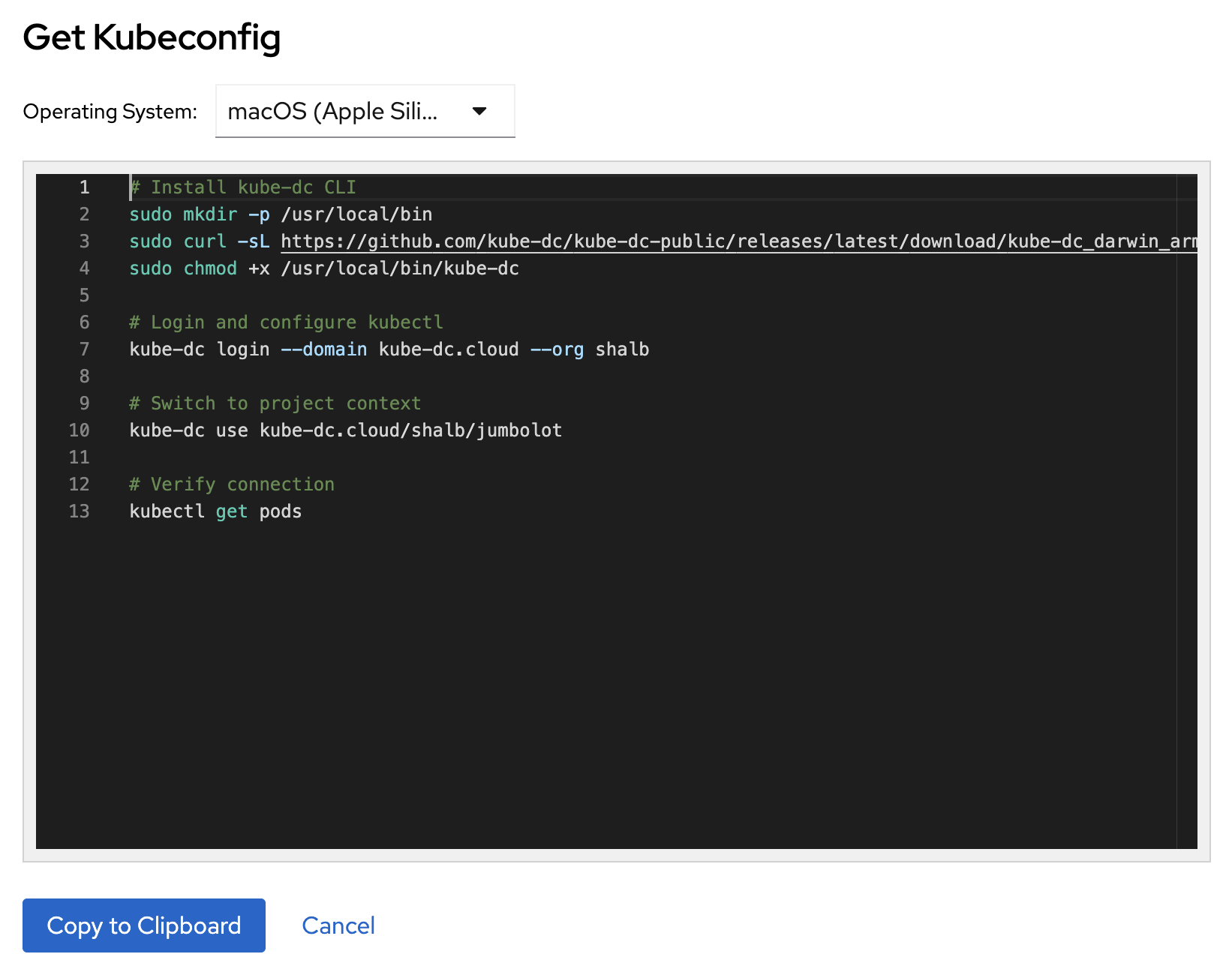
The console gives you installation commands for your platform and your
authentication details. The kube-dc CLI then:
- Authenticates you through the browser
- Generates your kubeconfig
- Saves cached credentials under
~/.kube-dc/with user-only file permissions - Configures
kubectlcontexts for your Projects
# Example workflow shown in the console
kube-dc login --domain kube-dc.cloud --org your-org
kube-dc use kube-dc.cloud/your-org/your-project
kubectl get pods
Install the CLI
macOS and Linux
os="$(uname -s | tr '[:upper:]' '[:lower:]')"
case "$(uname -m)" in
  x86_64) arch="amd64" ;;
  arm64|aarch64) arch="arm64" ;;
  *) printf 'Unsupported architecture: %s\n' "$(uname -m)" >&2; exit 1 ;;
esac
tmp="$(mktemp)"
curl --fail --location \
  "https://github.com/kube-dc/kube-dc-public/releases/latest/download/kube-dc_${os}_${arch}" \
  --output "$tmp"
sudo install -m 0755 "$tmp" /usr/local/bin/kube-dc
rm -f "$tmp"
Windows
$installDir = "$env:USERPROFILE\bin"
New-Item -ItemType Directory -Force -Path $installDir | Out-Null
$url = "https://github.com/kube-dc/kube-dc-public/releases/latest/download/kube-dc_windows_amd64.exe"
Invoke-WebRequest -Uri $url -OutFile "$installDir\kube-dc.exe"
$env:Path = "$installDir;$env:Path"
$userPath = [Environment]::GetEnvironmentVariable("Path", "User")
if ($userPath -notlike "*$installDir*") { [Environment]::SetEnvironmentVariable("Path", "$installDir;$userPath", "User") }
Quick start
1. Sign in to your Organization
kube-dc login --domain kube-dc.cloud --org acme
The command opens your browser for authentication. After you sign in, the CLI:
- Configures your kubeconfig
- Creates a context for each Project you can access
- Caches tokens in
~/.kube-dc/credentials/with user-only file permissions
When the Kubernetes API needs a CA certificate, sign-in discovers and embeds
it. Discovery uses the backend's verified HTTPS endpoint, and the CLI verifies
the API before it saves your context. You do not need an existing kubeconfig.
If an older installation does not support discovery, ask your platform
administrator for a trusted CA bundle and pass it with --ca-cert.
For an SSH session or a machine without a browser, add --device-code:
kube-dc login --domain kube-dc.cloud --org acme --device-code
Open the displayed URL on another device, enter the code, and approve the
sign-in. The CLI saves the credentials and the kubeconfig on the machine it
runs on. Later kubectl commands refresh tokens while the session stays valid.
If Keycloak rejects device sign-in, ask your platform administrator to turn on
OAuth 2.0 Device Authorization Grant on your Organization's kube-dc
client.
2. Switch Projects
# List available Project contexts
kube-dc use

# Switch to a Project
kube-dc use kube-dc.cloud/acme/production
3. Run kubectl
kubectl get pods
kubectl top pods
kubectl logs -f my-pod
Command reference
kube-dc login
Authenticates you to a Kube-DC platform.
kube-dc login --domain <domain> --org <organization>

# Examples
kube-dc login --domain kube-dc.cloud --org acme
kube-dc login --domain stage.kube-dc.com --org mycompany
The command takes the following options:
--domain: the platform domain, for examplekube-dc.cloud.--org: the Organization, which is also the realm name.--insecure: skips TLS verification. Do not use it in production.
kube-dc ns
Compatibility selector for Project backing namespaces. It rewrites the
namespace field on the current context without changing the context name, so
the two can become misleadingly different. Prefer kube-dc use for normal
Project switching.
# List accessible Project backing namespaces
kube-dc ns

# Select a backing namespace on the current context (legacy behavior)
kube-dc ns acme-production
kube-dc use
Switches between Kube-DC contexts. This is the preferred Project switcher.
# List all kube-dc contexts
kube-dc use

# Switch to a specific context
kube-dc use kube-dc.cloud/acme/production
kube-dc logout
Removes cached credentials.
# Sign out of the current server
kube-dc logout

# Sign out of all servers
kube-dc logout --all
kube-dc config
Shows the configuration and the token status.
# Show current configuration
kube-dc config show

# List all kube-dc contexts
kube-dc config get-contexts
How it works
Authentication flow
- The CLI opens the Keycloak sign-in page in your browser.
- Keycloak and the CLI exchange tokens with OAuth 2.0 PKCE, so no credential passes through the terminal.
- The CLI writes the token files to
~/.kube-dc/credentials/with owner-only filesystem permissions. kubectlcalls the CLI as its credential plugin.
The credential cache is not encrypted at rest. Owner-only file permissions
(0600) protect it. Protect your local account and disk accordingly.
Kubeconfig integration
After you sign in, your kubeconfig contains entries like these:
contexts:
- name: kube-dc/kube-dc.cloud/acme/production
  context:
    cluster: kube-dc-kube-dc.cloud-acme
    user: kube-dc@kube-dc.cloud/acme
    namespace: acme-production

users:
- name: kube-dc@kube-dc.cloud/acme
  user:
    exec:
      apiVersion: client.authentication.k8s.io/v1
      command: kube-dc
      args:
        - credential
        - --server
        - https://kube-api.kube-dc.cloud:6443
        - --realm
        - acme
Token lifecycle
- Access token: short-lived (15 minutes by the platform default)
- Refresh token: requested with the
offline_accessscope - Local session window: the CLI records a 30-day refresh window when the identity provider reports no finite refresh expiry; successful refreshes extend that local window
- Automatic refresh: the kubeconfig credential plugin refreshes the access
token when
kubectlruns
Shell completions
To turn on tab completion, run the command for your shell:
# Bash
kube-dc completion bash > /etc/bash_completion.d/kube-dc

# Zsh
kube-dc completion zsh > "${fpath[1]}/_kube-dc"

# Fish
kube-dc completion fish > ~/.config/fish/completions/kube-dc.fish
Troubleshooting
Session expired
The message session expired means the cached refresh credential is missing,
expired, or no longer accepted by the identity provider. Sign in again:
kube-dc login --domain <domain> --org <org>
Context not found
If a command reports that the current context is not a Kube-DC context, run:
# Check current context
kubectl config current-context

# Switch to a kube-dc context
kube-dc use kube-dc.cloud/acme/production
Clear all credentials
To start fresh, run:
kube-dc logout --all
rm -rf ~/.kube-dc/credentials/
Diagnose access
Confirm the selected context and test the permission needed for your next command:
kubectl config current-context
kubectl auth can-i get pods
kube-dc login --help
Security practices
- Never share your
~/.kube-dc/credentials/directory. - Use
--insecureonly for development and testing. - Sign out when you finish:
kube-dc logout. - The CLI stores credentials with
0600permissions.
Project console (web terminal)
To get access without installing the CLI, use the Project console in the web interface:
- Click your username in the top right corner.
- Select Project console. A web terminal opens with
kubectlalready configured.
The web console includes:
kubectl,helm,k9s,stern, andvirtctl- Shell completions for all of those tools
- The aliases
k,kgp,kgs, andkl
Next steps
- Team management covers role-based access control.
- Create a virtual machine deploys your first VM.