Create your first Project
A Project is the working boundary for applications, virtual machines,
databases, and Managed Clusters. Kube-DC backs each Project with a namespace
named {organization}-{project}, Project RBAC, a private network, an optional
quota, and a Project kubeconfig. The namespace is an implementation detail, so
the console and this guide call the environment by its Project name.
Before you begin
You need:
- A Kube-DC Cloud account. See Sign up and sign in.
- Organization Admin access.
- Familiarity with Core concepts.
Create a Project
-
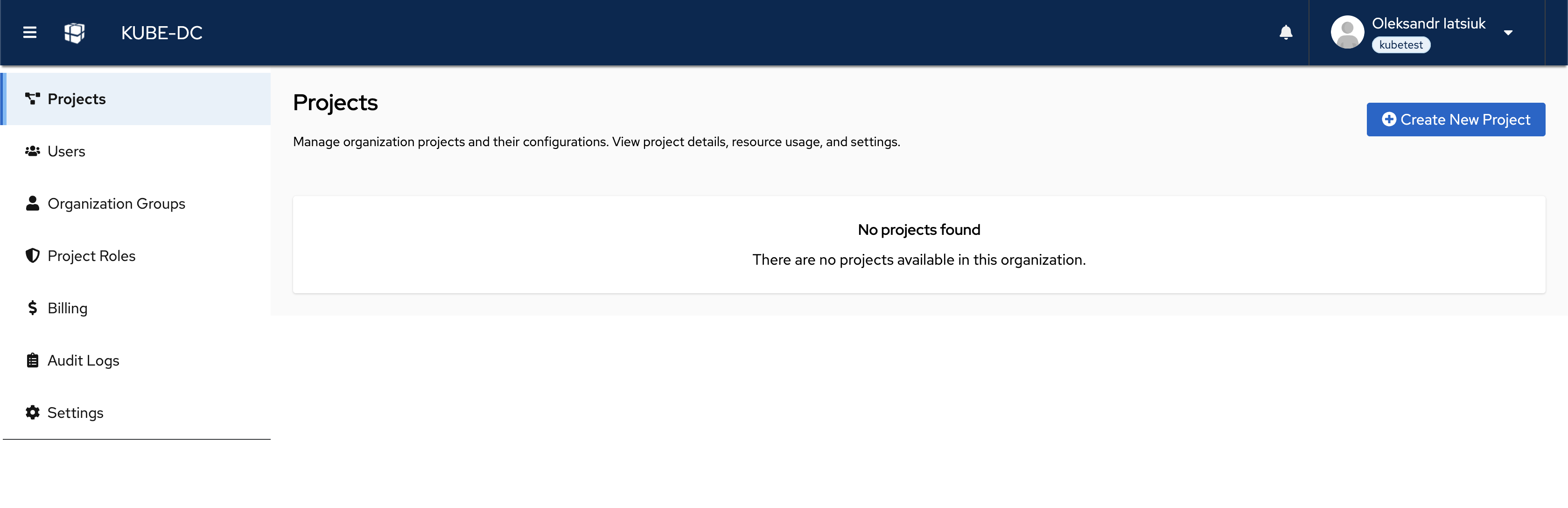
In the main sidebar, click Projects.
-
In the top right corner, click Create New Project. The creation wizard opens.
-
In the Project Configuration step, set the Project's basic properties:
- Project Name: a unique name, for example
dev,staging, orproduction. - CIDR Block: the internal IP range for this Project's private network,
for example
10.0.0.0/16. - Egress Network Type: how workloads in this Project reach the internet. For help with this field, see Choose a network type.
- Project Name: a unique name, for example
-
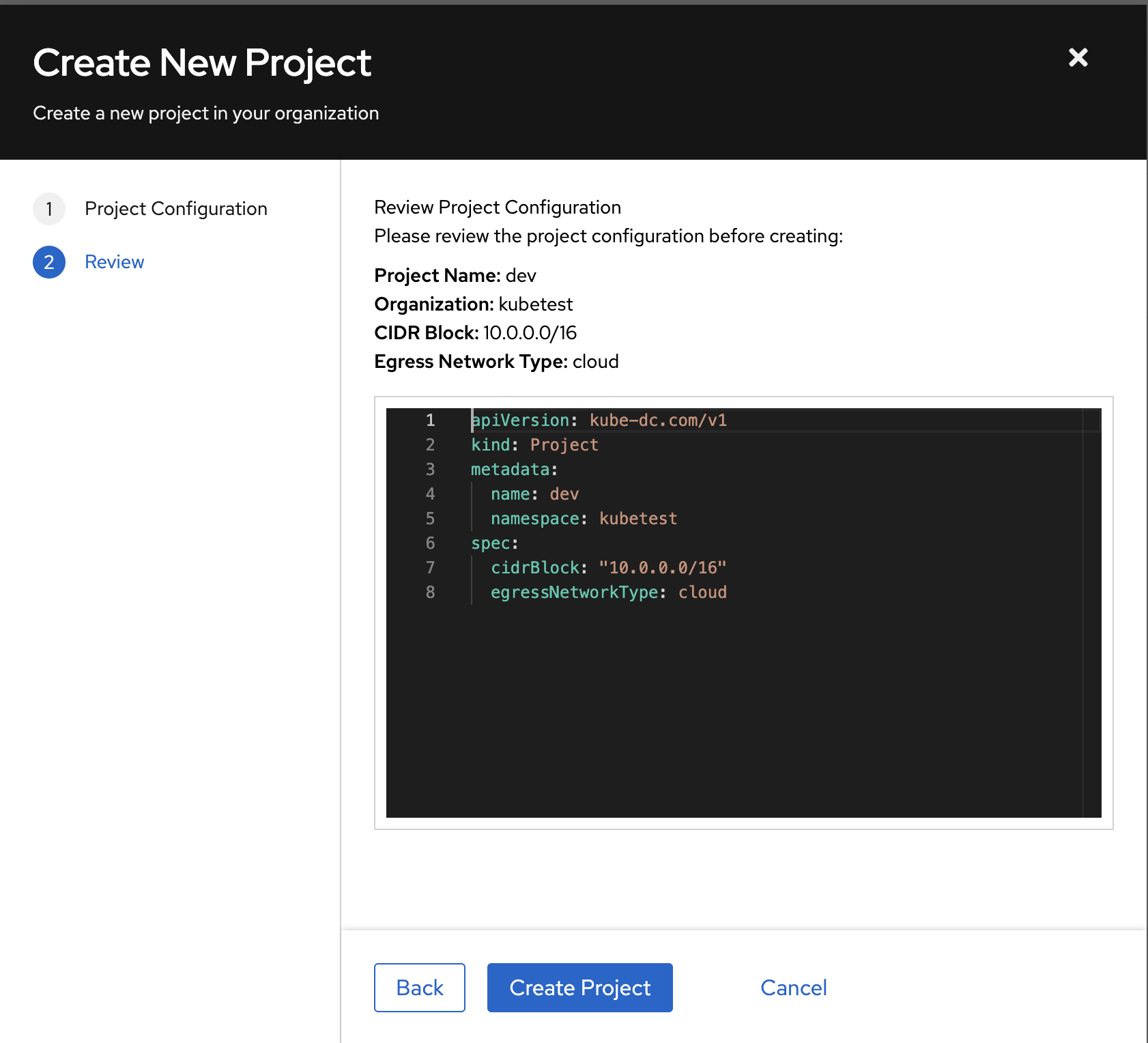
Click Next. Kube-DC shows the Kubernetes manifest it applies for this Project.
-
Review the configuration, then click Create Project.
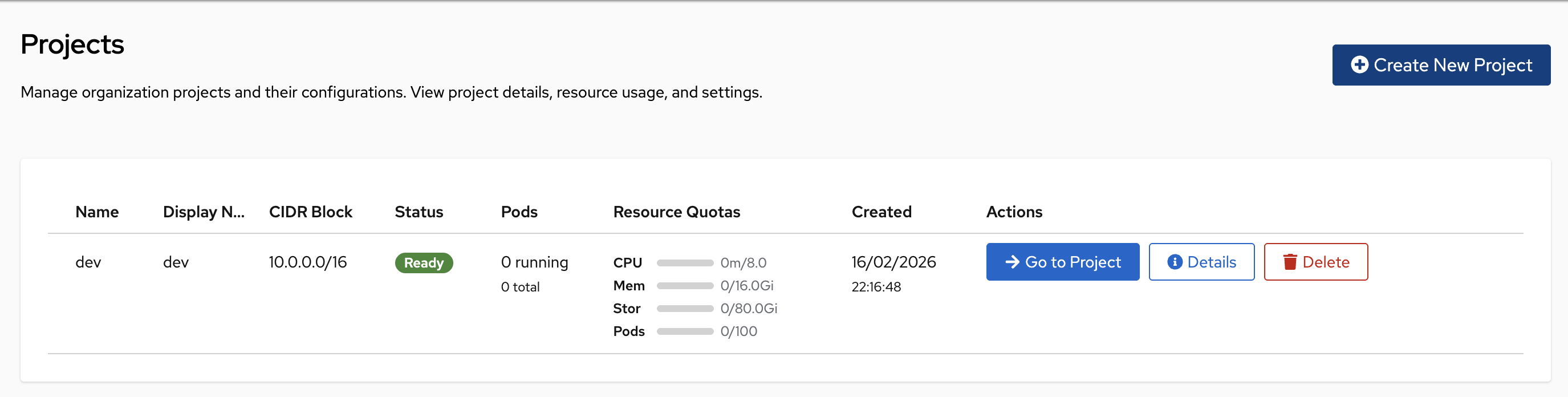
The Project appears in the list with the status Ready.
Choose a network type
The network type selects the address pool for the Project default gateway. Both types keep workloads on private addresses and use source NAT (SNAT) for outbound traffic. You cannot change the network type after you create the Project.
Every provider offers Cloud. Public appears only when the provider enables public Project creation. The following table compares the two types:
| Type | Default gateway | Choose it when |
|---|---|---|
| Cloud | Cloud-internal address | The normal choice for applications exposed through Gateway Routes or separately allocated EIPs |
| Public | Internet-routable address | The Project needs a public source address at its default gateway |
Neither type exposes a workload by itself. To accept inbound traffic, create a Gateway Route, a LoadBalancer Service, or a floating IP. Address availability and cost depend on your provider and your quota. See How networking works.
Optional: set a resource quota
By default, a Project shares the full resource pool of your Organization. Set a quota to stop one Project from consuming all of it.
-
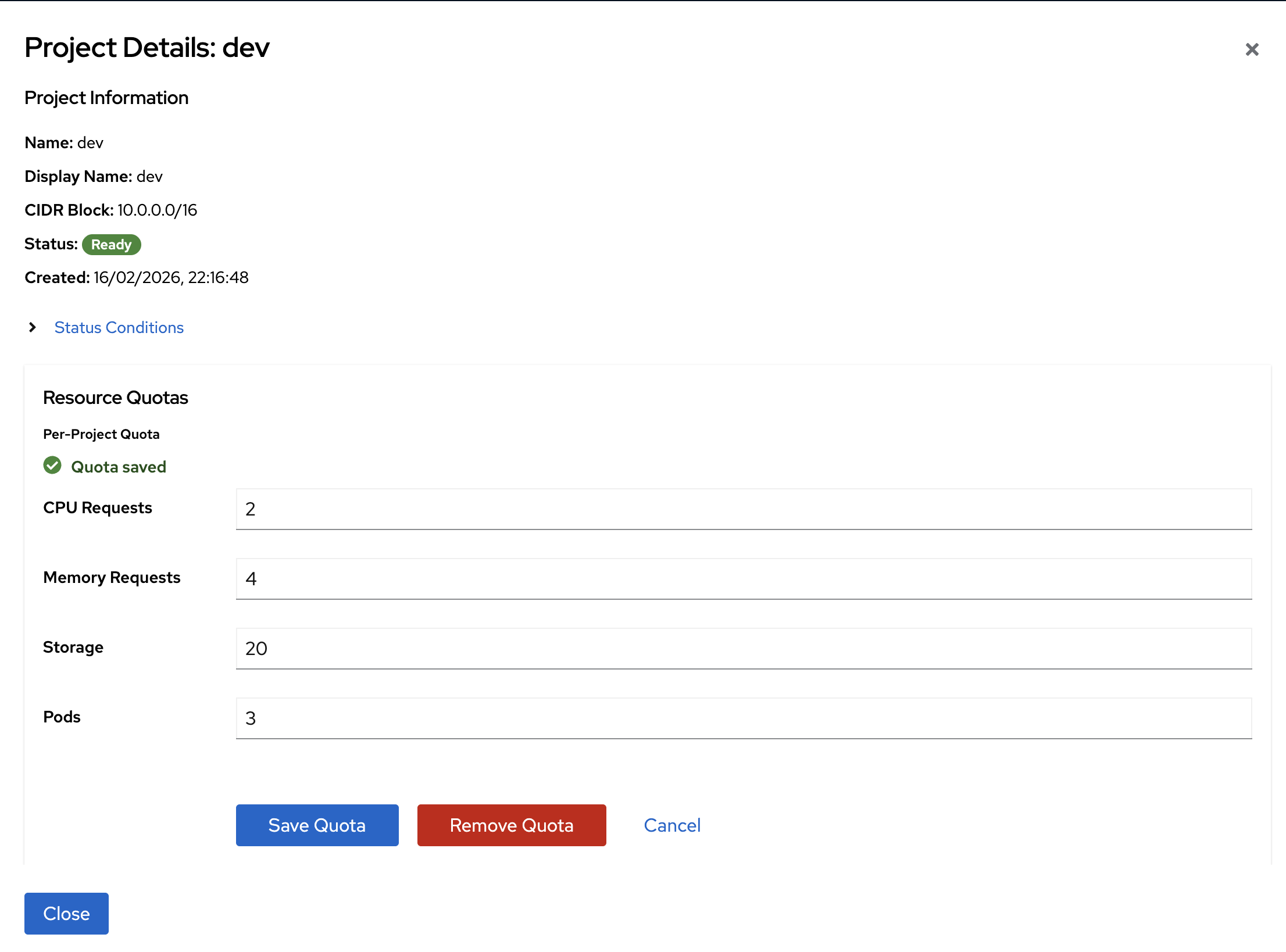
In the Projects list, click Details next to your Project.
-
In the Resource Quotas section, click Set Quota.
-
Set the limits for this Project:
- CPU: the maximum number of CPU cores.
- Memory: the maximum RAM in GiB.
- Storage: the maximum disk space in GiB.
- Pods: the maximum number of pods.
-
Click Save Quota.