Navigate the Kube-DC dashboard
The Kube-DC dashboard is the central interface for Projects, workloads, virtual machines, Managed Clusters, and your account.
Projects view
After you sign in, the Projects page opens. It lists every Project in your Organization with its status, network CIDR, running pods, resource quotas, and creation date.
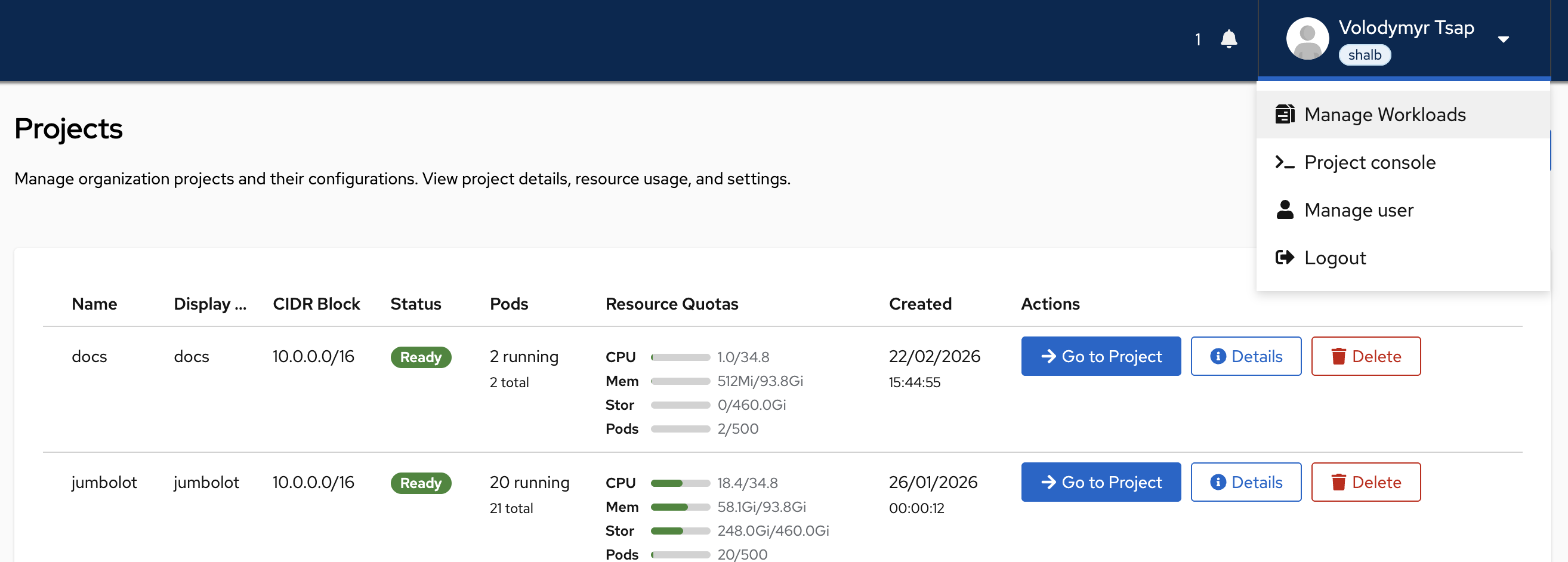
From this page you can:
- Go to Project: open the workloads dashboard for one Project
- Details: view the Project configuration and its resource limits
- Delete: remove a Project, if your role permits it
User menu
Click your name in the top right corner to open the user menu. The following table lists its items:
| Menu item | Description |
|---|---|
| Manage Workloads | Opens the workloads dashboard for the selected Project |
| Project console | Starts a web terminal with kubectl access scoped to your Projects |
| Manage user | Opens account settings for password and two-factor authentication |
| Logout | Signs you out of the dashboard |
Workloads dashboard
Manage Workloads and Go to Project both open the main workloads dashboard.
Quick actions
Three action cards at the top open common tasks:
- Get CLI Access: download your kubeconfig for
kubectlaccess - Deploy Virtual Server: create a Linux or Windows virtual machine
- Create Managed Cluster: provision a Managed Cluster with its own Kubernetes API
Sidebar navigation
The left sidebar shows a tree of the resources in the current Project:
- Virtual Machines, grouped by operating system, such as
debian,ubuntu, andwin - Managed Clusters and their worker pools
Project overview
The center panel adapts to the provider's billing mode:
- Subscription plans show running and total pods and VMs, the storage volume count and size, load balancers, and public IPs.
- Metered plans show running compute usage and the totals for the current billing period.
Resource quotas
When quota data is available, Quota Usage compares Project use against either the Project cap or the Organization's shared pool. It can include CPU, memory, storage, pods, public IPv4 addresses, object storage, and any accelerators the provider enables.
Organization Admins can select View Organization Billing to open plan, usage, and cost details. Other Project members do not see that action.
Switch Projects
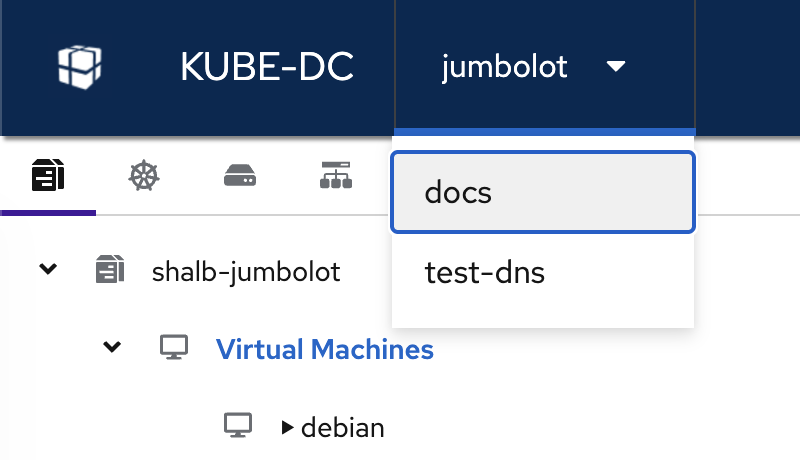
To move between Projects without returning to the Projects list, use the project switcher at the top of the dashboard, next to the Kube-DC logo. Click the current Project name, then select another Project.
Resource tabs
Below the top navigation bar, a row of icon tabs switches between resource categories in the current Project.
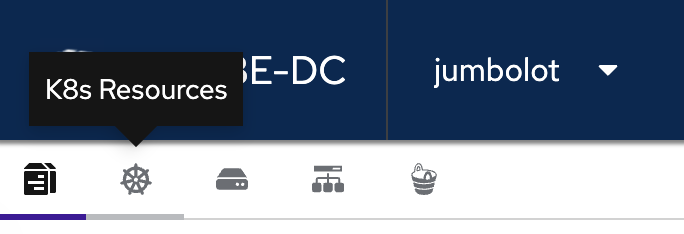
The following table lists the tabs from left to right:
| Resource area | What you find there |
|---|---|
| Compute | Pods, Deployments, StatefulSets, DaemonSets, Jobs |
| Kubernetes Resources | ConfigMaps, Secrets, ServiceAccounts, and platform-provided custom resources |
| Volumes | PersistentVolumeClaims and storage usage |
| Network | Services, Ingresses, load balancers, IPs |
| Object Storage | S3-compatible buckets and access credentials |
Organization management
To open the Organization management view, click the Kube-DC logo in the top left corner of the Projects page.
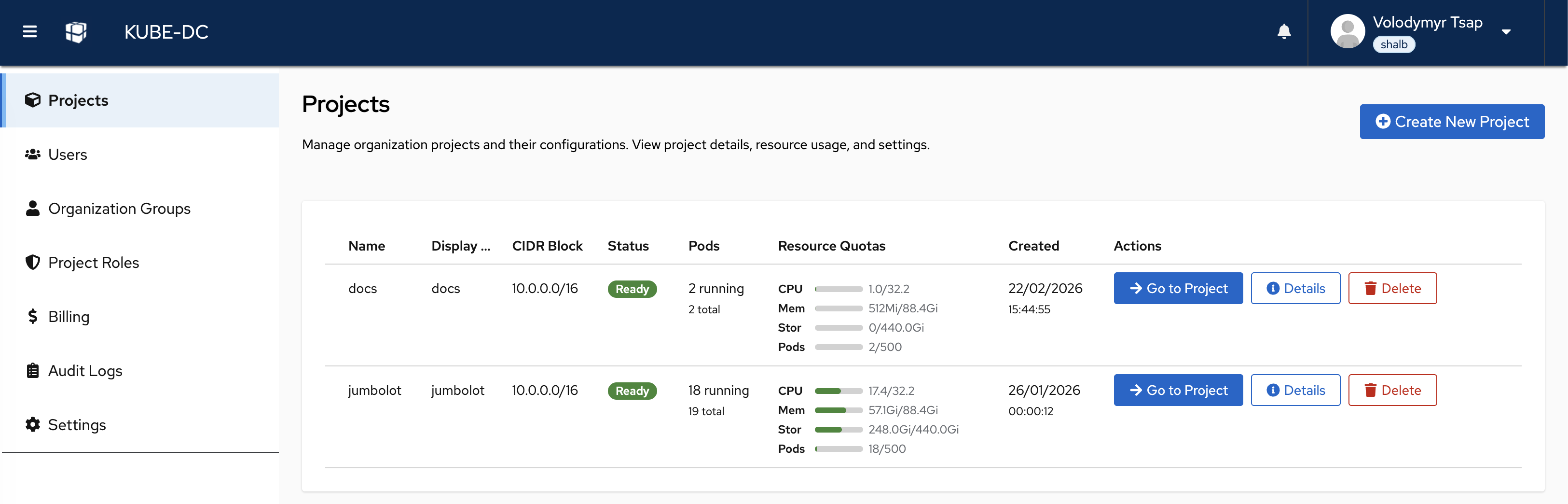
The left sidebar gives access to:
- Projects: create, view, and manage Projects
- Users: invite and manage Organization members
- Organization Groups: manage user groups and role assignments
- Project Roles: define custom roles for Project-level access control
- Billing: view usage, costs, and billing plan details
- Audit Logs: review actions taken across the Organization
- Settings: configure Organization-level settings
Project web console
To open a browser terminal, select Project console from the user menu. The
console holds a pre-authenticated kubectl session, scoped to the Projects in
your Organization.
From the console you can:
- List and switch Project contexts with
kube-dc use - Run
kubectlcommands, including thekgpandkgsaliases - Manage resources without installing any CLI tools locally
Account settings
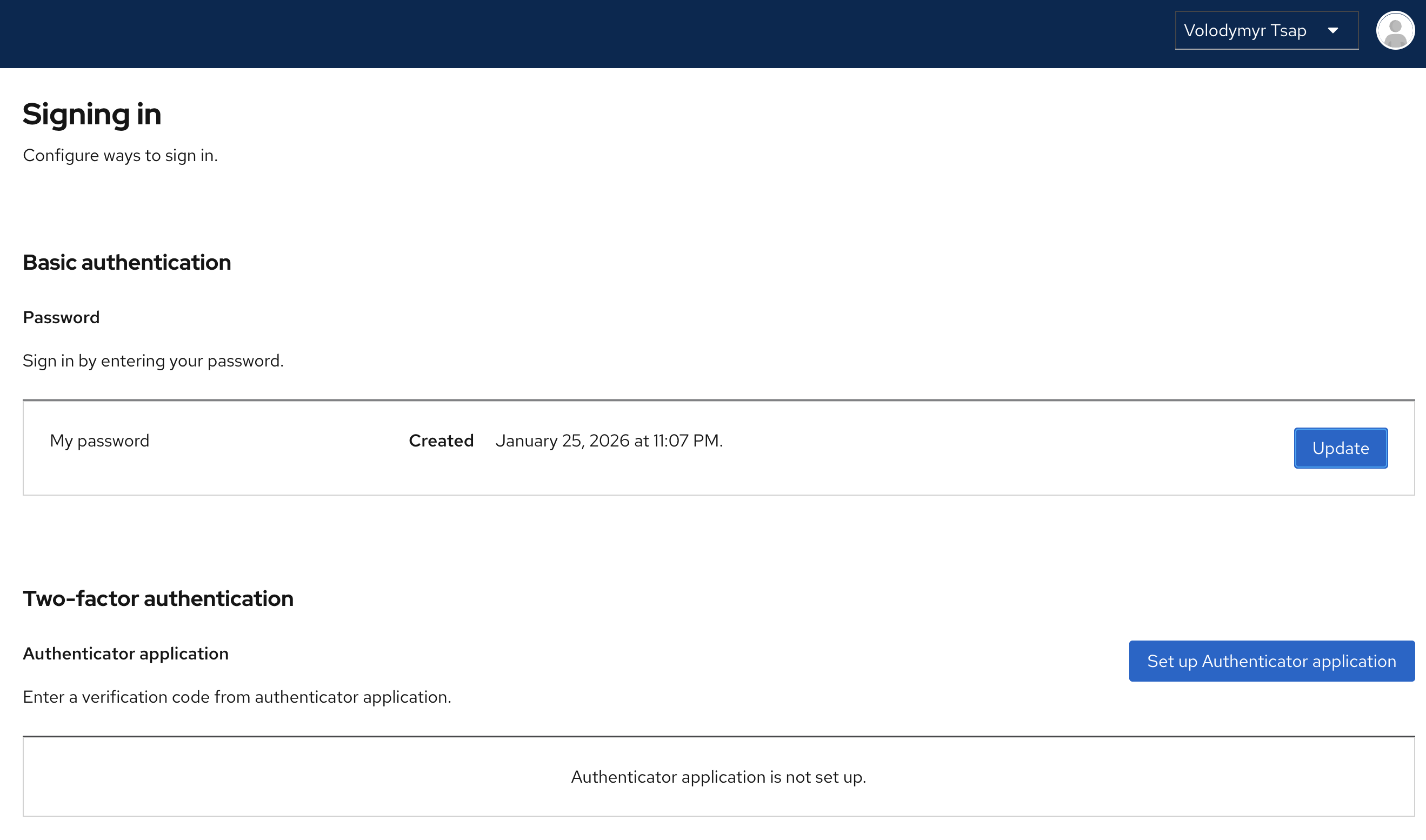
To open your account settings, select Manage user from the user menu.
Change your password
Under Basic authentication, click Update next to your password entry, then set a new password. The page shows the date your current password was created.
Set up two-factor authentication
Under Two-factor authentication, click Set up Authenticator application and follow the prompts. Use an authenticator app such as Google Authenticator or Authy. After setup, Kube-DC asks for a verification code at every sign-in.
Turn on two-factor authentication to protect your account, above all for Organization administrators.
Next steps
- Core concepts explains Organizations, Projects, and resource isolation.
- Create your first Project sets up your first Project.
- CLI and kubeconfig access covers the command line.
- Team management covers users and roles.