Sign up and sign in
To use Kube-DC, you need a verified user account and membership of an Organization. This guide covers account creation, Organization setup, and the sign-in options.
Before you begin
You need:
- A valid email address
- A current web browser: Chrome, Firefox, Safari, or Edge
Create your account
-
Go to console.kube-dc.cloud.
-
Click Sign up with email or Sign up with Google.
-
Fill in the registration form:
- Email: your email address. Kube-DC uses it for sign-in and notifications.
- First name: your first name.
- Last name: your last name.
-
Click Register.
-
Open the verification email and confirm your account.
If you sign up with Google, Kube-DC verifies your account automatically. Go straight to Organization setup.
Set up your Organization
After registration, the console asks you to set up or join an Organization. An Organization is the identity, membership, billing, and shared-quota boundary for its Projects.
Create an Organization
Follow these steps if you start fresh, or if you need a separate Organization:
- Enter a unique Organization name, such as your company or team name.
- Wait for the availability check. A green checkmark means the name is free.
- Set your Organization login password. It needs at least 8 characters.
- Confirm the password.
- Click Continue.
The user who creates an Organization becomes its Organization Admin, with full access to users, Projects, and settings. Keep your Organization login password secure. It belongs to your own user account. Organization members do not share it.
Join an existing Organization
Follow these steps if your team already has an Organization:
- Enter the existing Organization name.
- Read the message "Organization exists. You can request to join."
- Click Request to join.
- Wait for an Organization Admin to approve the request.
An Organization Admin must approve every join request. Kube-DC sends you an email when the request is processed.
Sign in
-
Go to console.kube-dc.cloud.
-
Enter your Organization name.
-
Choose a sign-in method:
- Log in: enter your Organization login password.
- Sign in with Google: use Google single sign-on, if your Organization has it configured.
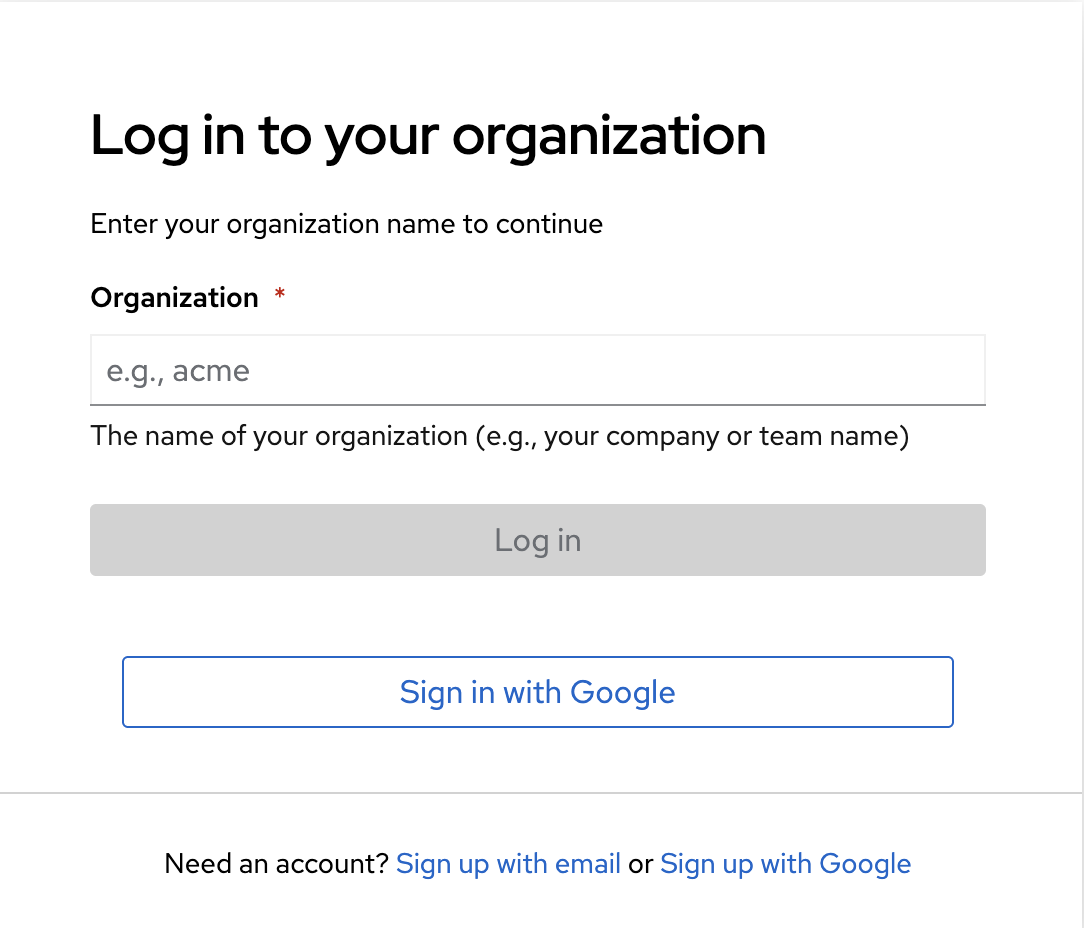
For faster access, bookmark your Organization's direct sign-in URL:
https://console.kube-dc.cloud/?realm=ORGANIZATION_NAME. Replace
ORGANIZATION_NAME with your Organization name.
Choose a plan or a trial
Subscription and trial options depend on the Kube-DC deployment and its billing provider. Some providers offer a trial with the first subscription. A valid promo code or an administrator can also enable trial access. The Billing screen shows your eligibility and the duration before checkout.
After you create the Organization, open Billing to:
- Choose one of the plans your provider offers
- Redeem a promo code, if you have one
- Review the CPU, memory, storage, IP, and accelerator quota before checkout
- See the subscription state and the remaining trial time, if a trial applies
The Billing screen is the source of truth for plan capacity and commercial terms. For quota and subscription details, see Billing and usage.
Next steps
- Explore the dashboard to learn how to navigate the Kube-DC console
- Create your first Project
- Set up user groups and permissions
- Configure Google SSO for your Organization