Billing and usage
The Billing & Subscriptions section lets you monitor resource consumption, manage your subscription plan, add extra capacity, and control payment for your whole Organization, all from one page under Manage Organization > Billing.
Overview dashboard
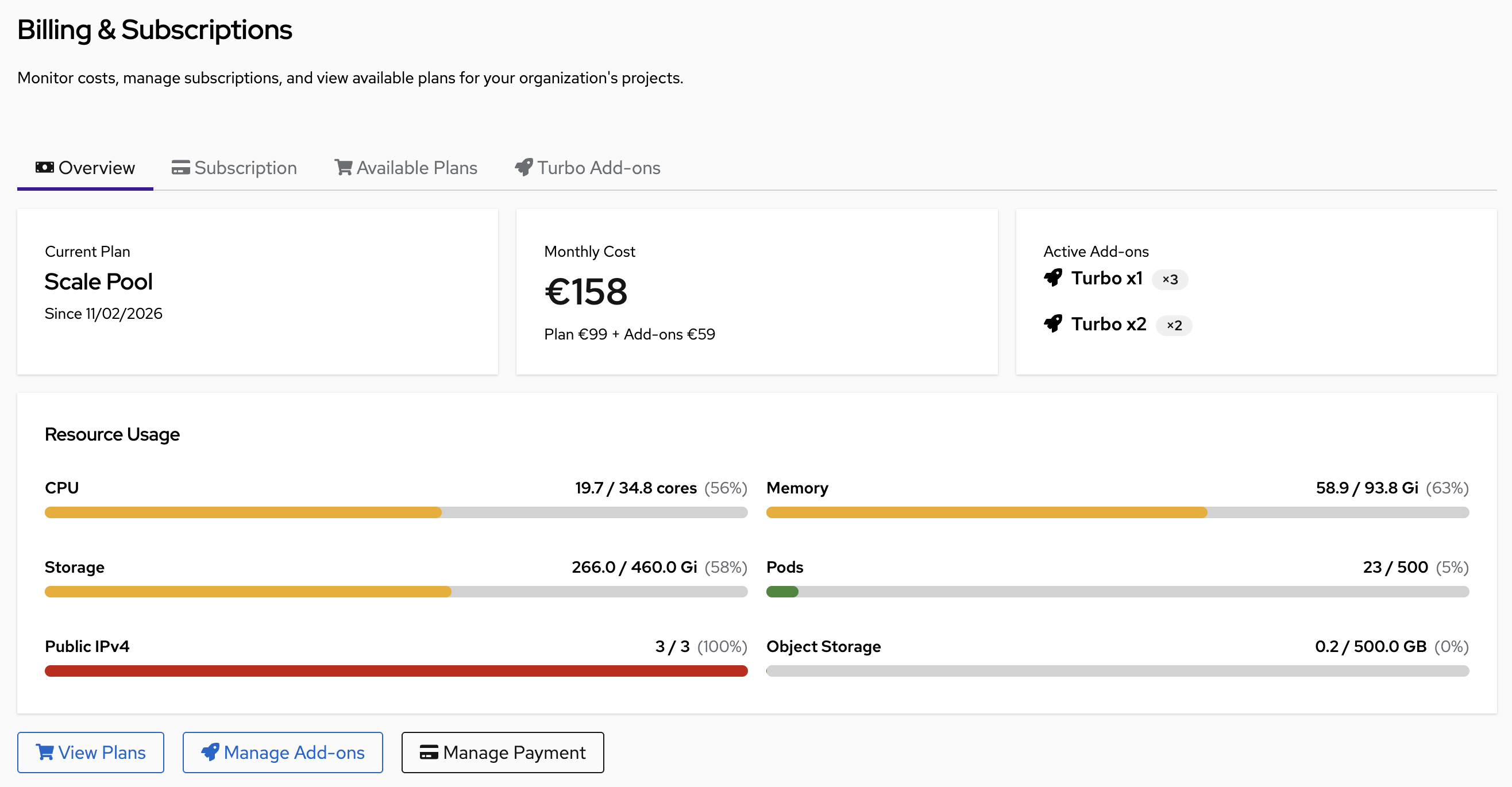
The Overview tab shows your current state at a glance:
- Current Plan: Active plan name and subscription start date
- Monthly Cost: Total cost broken down as base plan + active add-ons
- Active Add-ons: Turbo packages currently applied to the organization
- Resource Usage: Live progress bars for every quota dimension:
- CPU (cores used / total available)
- Memory (GiB used / total available)
- NVMe Storage (GiB used / total available)
- Pods (count used / plan limit)
- Public IPv4 (addresses used / plan limit)
- Object Storage (GB used / plan limit)
The progress bars change color as usage rises: green → yellow → red. A resource shown in red is at or near its limit and may block new deployments.
From the Overview you can also:
- View Plans: Browse and switch subscription plans
- Manage Add-ons: Add or remove Turbo capacity packages
- Manage Payment: Open the configured billing provider to update billing details
Subscription plans
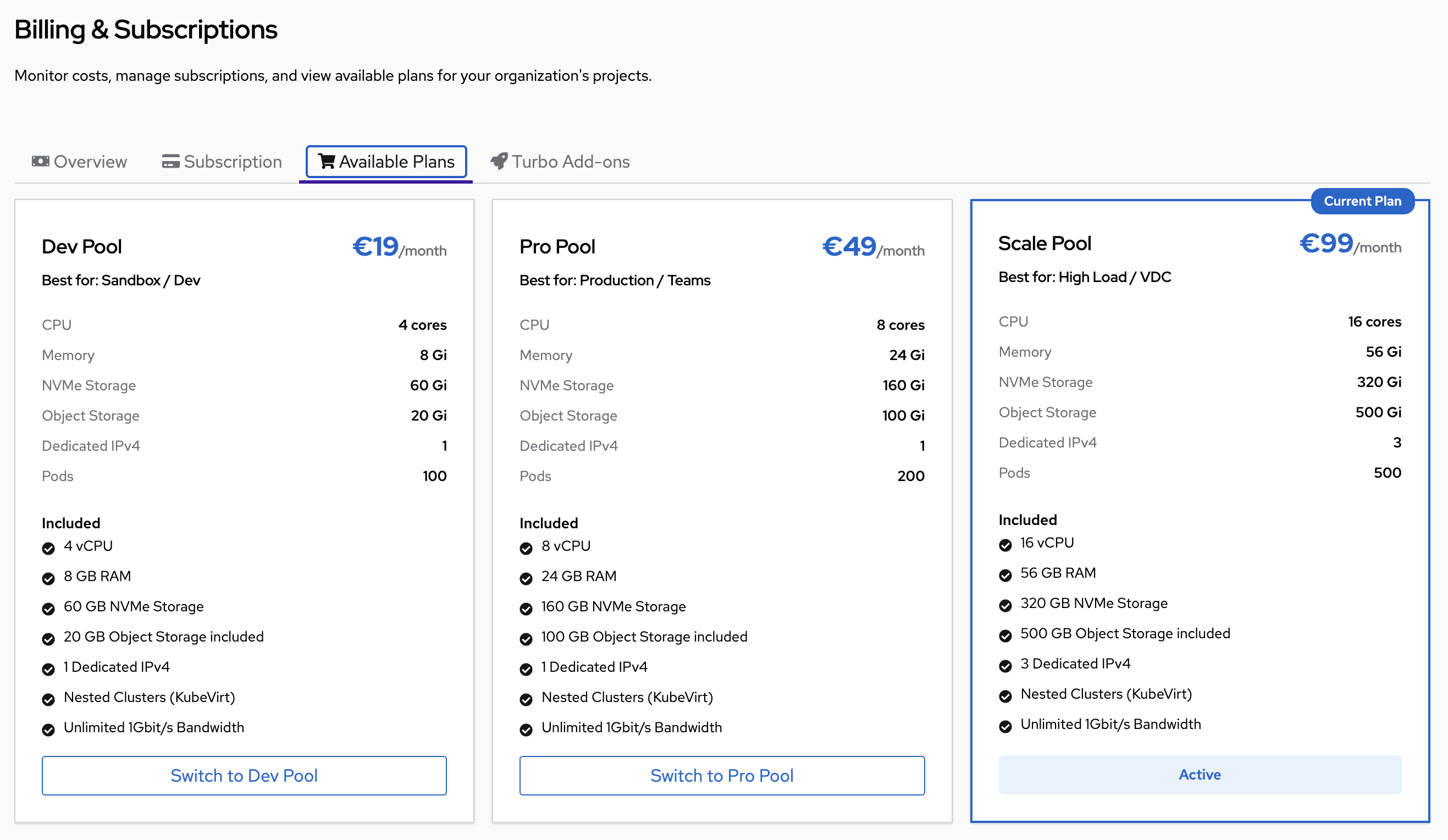
Kube-DC Cloud offers the following plans. Plan names, prices, and entitlements can vary by installation; the Available Plans tab in your console is the source of truth.
| Dev Pool | Pro Pool | Scale Pool | |
|---|---|---|---|
| Monthly price | €19/month | €49/month | €99/month |
| Best for | Sandbox / Dev | Production / Teams | High Load / VDC |
| CPU | 4 vCPU | 8 vCPU | 16 vCPU |
| Memory | 8 GB | 24 GB | 56 GB |
| NVMe Storage | 60 GB | 160 GB | 320 GB |
| Object Storage | 20 GB | 100 GB | 500 GB |
| Dedicated IPv4 | 1 | 1 | 3 |
| Max Pods | 100 | 200 | 500 |
| Managed Clusters | Included | Included | Included |
| Bandwidth | Unlimited 1Gbit/s | Unlimited 1Gbit/s | Unlimited 1Gbit/s |
All plans can run Project workloads and Managed Clusters. Features marked Preview, Pilot, or provider-specific in the console may require a separate entitlement.
Plans with a GPU
Some installations offer a GPU alternative for each tier. When they do, the plan grid shows a Standard / With GPU switch: the tiers are otherwise identical, with the same CPU, memory, storage, IPv4, and pod limits. The GPU version adds a shared GPU allocation to the same tier.
A GPU plan lists what it includes:
| Meaning | |
|---|---|
| Concurrent GPU workloads | How many GPU workloads can run at the same time |
| GPU memory | Total GPU memory reserved across those workloads |
| GPU compute | Total share of GPU compute across those workloads |
Your plan entitles you to run that much GPU at once. It does not hold a physical GPU aside for you: if every matching GPU is busy, a new GPU workload waits in the queue until one frees up.
If you do not see the switch, this installation does not sell GPU as part of a plan. A GPU can still be available as an add-on. Check the Add-ons section of your Billing page, or ask your provider.
Use the Scaling and Performance Guide to define a latency target, load-test the complete application, configure autoscaling, and reserve rollout and recovery headroom. Generic user-count estimates are not a capacity guarantee.
Understand resource quotas
All resources in your plan are shared across all projects in your organization. The quota is applied at the organization level, and any combination of usage across your projects counts toward it.
Example: Organization acme has an 8 vCPU, 24 GiB Pro Pool shared by
Projects development, staging, and production:
| Project | Backing namespace | CPU used | Memory used |
|---|---|---|---|
development | acme-development | 2 vCPU | 4 GiB |
staging | acme-staging | 2 vCPU | 8 GiB |
production | acme-production | 3 vCPU | 10 GiB |
| Total | 7 vCPU | 22 GiB |
The Organization still has 1 vCPU and 2 GiB available.
There is no per-Project quota split by default. Projects draw from the same shared pool. If one Project is idle, another can use all available resources. Organization admins can optionally set per-Project limits to prevent one Project from consuming everything; see Per-Project resource limits.
The Public IPv4 dimension counts only EIp resources with externalNetworkType: public across the Organization namespace and all Project backing namespaces. Cloud/private External IPs do not consume this public-address quota. A Floating IP that automatically creates a public EIp consumes one slot through that EIp.
Guaranteed capacity
The current Kube-DC Cloud plans use a 1.0 allocation ratio: the CPU and memory shown in the plan are the organization quota, not a smaller reservation backed by an advertised burst multiplier. Scheduling still depends on available cluster capacity.
Use the Billing page for the effective quota on your organization. Do not plan capacity around temporary usage above that value.
Resource limits for workloads
Kubernetes enforces organization quota from workload resource requests and limits. When a container omits them, the Project's LimitRange applies the defaults shown below.
Automatic defaults
You do not need to manually set resource values on every workload. The platform automatically applies default CPU and memory values to any container that doesn't specify them. These defaults are sized based on your active plan:
| Dev Pool | Pro Pool | Scale Pool | |
|---|---|---|---|
| Default CPU request | 100m | 250m | 500m |
| Default memory request | 128 Mi | 256 Mi | 512 Mi |
| Default CPU limit | 500m | 500m | 1 core |
| Default memory limit | 512 Mi | 512 Mi | 1 Gi |
| Max CPU per container | 4 cores | 8 cores | 16 cores |
| Max memory per container | 8 Gi | 24 Gi | 56 Gi |
| Max CPU per pod | 4 cores | 8 cores | 16 cores |
| Max memory per pod | 8 Gi | 24 Gi | 56 Gi |
| Max PVC storage | 60 Gi | 160 Gi | 320 Gi |
Requests reserve schedulable capacity. Limits cap runtime use: CPU is throttled, while exceeding a memory limit can terminate the container for OOM.
What this means in practice
- A pod deployed without any resource declarations (for example, a raw Kubernetes deployment with no
resources:block) will automatically receive the plan's default request and limit values. - KubeVirt virtual machines translate their vCPU and memory settings into pod-level resource values automatically. You configure nothing by hand.
- The max per container cap prevents a single runaway container from consuming your entire organization's quota. If you need a container larger than the plan's max, contact support or upgrade to a higher plan.
When workloads are rejected
After your organization's quota is fully consumed, new workloads will fail to start with an error such as:
Error from server (Forbidden): pods "api" is forbidden: exceeded quota: plan-quota, requested: requests.cpu=500m, used: requests.cpu=8, limited: requests.cpu=8
To resolve this:
- Delete unused pods or VMs to free quota
- Add a Turbo Add-on to expand capacity
- Upgrade to a higher plan
Turbo add-ons
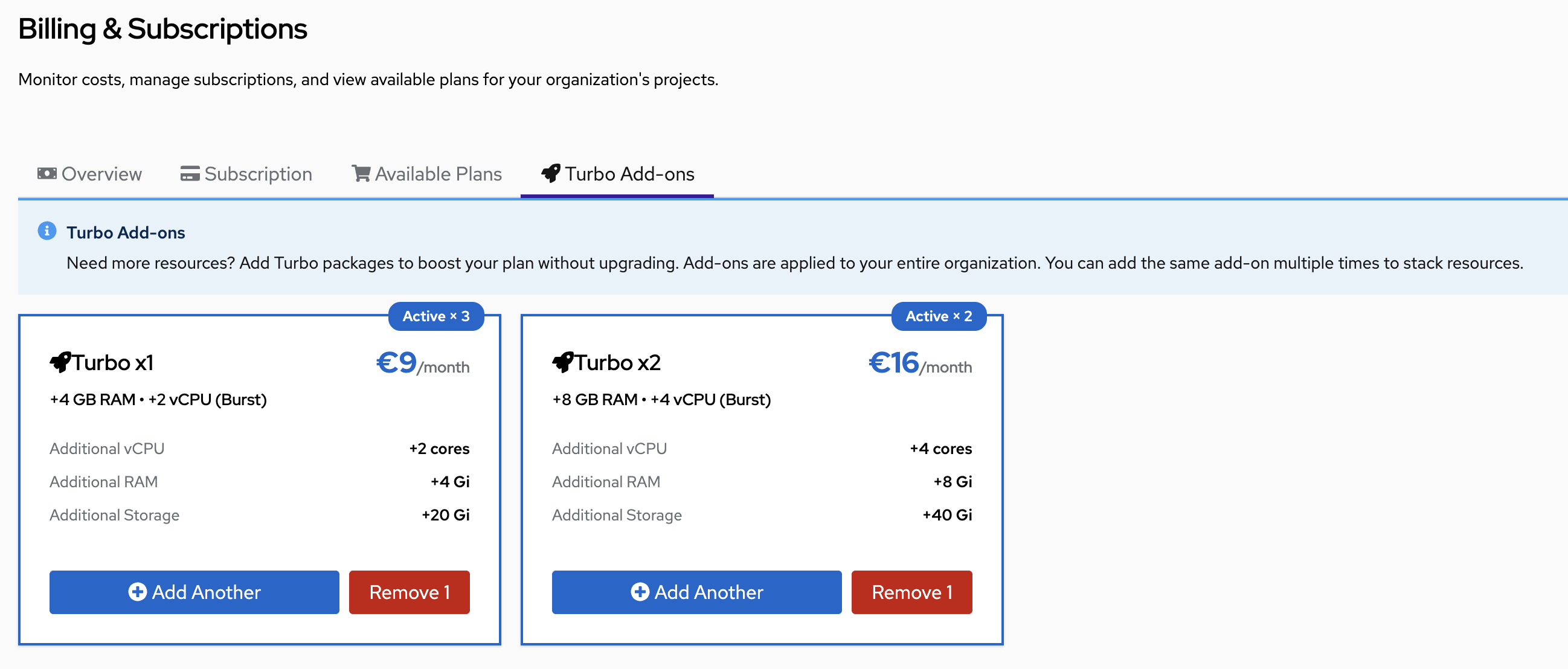
Turbo Add-ons let you boost your organization's resources without switching plans. Add-ons apply to your whole Organization, and they stack. You can add the same package more than once.
| Turbo x1 | Turbo x2 | |
|---|---|---|
| Monthly price | €9/month | €16/month |
| Additional vCPU | +2 cores | +4 cores |
| Additional RAM | +4 GB | +8 GB |
| Additional Storage | +20 GB | +40 GB |
Example: Scale Pool + 3× Turbo x1 + 2× Turbo x2 = €99 + €27 + €32 = €158/month, providing:
- CPU: 16 + 6 + 8 = 30 vCPU
- RAM: 56 + 12 + 16 = 84 GB
- Storage: 320 + 60 + 80 = 460 GB
This matches the Overview screenshot above where Monthly Cost shows €158.
Add a Turbo add-on
- Navigate to Manage Organization → Billing → Turbo Add-ons
- Click Add Another on the desired package
- Wait for the billing provider to confirm the purchase and for the updated quota to appear in the Billing overview
Remove a Turbo add-on
- Navigate to Manage Organization → Billing → Turbo Add-ons
- Click Remove 1 on the package you want to reduce
Before removing an add-on, ensure your current resource usage fits within the reduced quota. If active workloads exceed the new limit, they will continue running but no new workloads will be schedulable until usage drops below the new quota.
Manage your subscription
Subscribe to a plan
- Navigate to Manage Organization → Billing → Available Plans
- Click Subscribe on your desired plan
- Complete checkout with the billing provider configured for your installation
- Return to the Billing overview and wait for the subscription to show Active before deploying
Change your plan
You can upgrade or downgrade at any time from the Available Plans tab.
- Click Switch to [Plan Name] on the target plan
- Confirm the change in the dialog
On upgrade: Quota is updated after the billing provider confirms the change. Any proration is shown during checkout or in the provider portal.
On downgrade: The system checks whether your current resource usage fits within the new plan before allowing the change. If you are over the target plan's limits, you will need to scale down workloads first.
Cancel your subscription
- Navigate to Manage Organization → Billing → Subscription
- Click Cancel Subscription
- Confirm in the dialog
The cancellation date and any proration depend on the configured billing
provider. The console shows the effective date and subscription state. While
the subscription remains canceling, its quota stays available until the
provider confirms the terminal state.
Subscription status
| Status | Resources | New Deployments | Payment |
|---|---|---|---|
| Active | Full plan quota | ✅ Allowed | Current |
| Trialing | Full plan quota | ✅ Allowed | Trial period |
| Canceling | Full plan quota | ✅ Allowed | Until period ends |
| Suspended | Minimal only | ❌ Blocked | Payment failed |
| Canceled | Minimal only, workloads paused | ❌ Blocked | Expired |
What happens when a subscription is suspended
If a payment fails, the subscription moves to suspended:
- 7-day grace period: all existing workloads continue running, but new deployments are blocked
- After 7 days: if payment is still not resolved:
- All Deployments and StatefulSets are scaled to zero replicas
- CronJobs are suspended
- The organization quota drops to a minimal holding allocation
Original replica counts are saved and restored automatically when you re-subscribe.
Re-subscribing
If your subscription is suspended or canceled, click Subscribe from the Available Plans tab to start a new subscription. All previously running workloads are automatically restored to their original state.
Manage payment
Click Manage Payment from the Billing Overview to open the payment portal configured for your installation. Available actions depend on that provider and can include:
- Update payment method: Change credit card or SEPA details
- Download invoices: Access billing history and PDF receipts
- View upcoming charges: Preview the next billing cycle
- Update billing address: Change the address shown on invoices
Use the provider's Return action to come back to the Kube-DC console.
Per-Project resource limits
By default, all projects share the organization quota with no individual caps. Organization administrators can optionally cap individual projects to prevent a single project from consuming the entire budget.
Set limits in the console
- Navigate to Manage Organization → Projects
- Click the project you want to limit
- Open the Resource Quotas panel and click Set Per-Project Quota
- Enter values for CPU, Memory, Storage, and/or Pods and click Save Quota
The panel shows the organization's total quota alongside the per-project fields so you can see what is available.
How limits are applied
The effective limit for a resource is the lower of the Project cap and the organization's remaining quota. Remove the cap from the Resource Quotas panel to return that dimension to the shared organization pool.
Project ResourceQuota objects are platform-managed and read-only through a
Project kubeconfig. Do not create, patch, or delete project-quota directly;
the organization-admin UI validates the requested values and applies them
through the platform service.
Track usage with kubectl
The platform exposes resource usage directly on the Organization and Project custom resources so you can query quota state from the command line without logging into the UI. Usage updates are asynchronous. Organization quota is event-driven; Project
quota also reacts to ResourceQuota changes and has a periodic 5–7 minute
fallback. Check each resource status timestamp before comparing values.
Organization-level usage
# Full quota summary (human-readable)
kubectl get organization <org> -n <org> -o jsonpath='{.status.quotaUsage}' | jq .
Example output:
{
  "cpu":           { "used": "18.975", "hard": "26" },
  "memory":        { "used": "63.6Gi", "hard": "70Gi" },
  "storage":       { "used": "443.2Gi", "hard": "460Gi" },
  "pods":          { "used": "33",     "hard": "500" },
  "publicIPv4":    { "used": "3",      "hard": "3" },
  "objectStorage": { "used": "",       "hard": "500Gi" },
  "lastUpdated":   "2026-04-07T20:55:42Z"
}
- cpu: cores used / available (decimal, for example,
18.975= 18,975 millicores) - memory and storage: the GiB consumed, against the plan limit
- publicIPv4: count of public External IPs in use across all projects
- objectStorage: hard limit from plan;
usedis populated asynchronously from object storage stats - lastUpdated: timestamp of last controller refresh
Check a single field:
kubectl get organization <org> -n <org> -o jsonpath='{.status.quotaUsage.cpu}' | jq .
# → { "hard": "26", "used": "18.975" }
Project-level usage
Each Project reports usage for its backing namespace:
kubectl get project <project> -n <org> -o jsonpath='{.status.quotaUsage}' | jq .
Example output:
{
  "cpu":               { "used": "6.72",    "hard": "26" },
  "memory":            { "used": "16.824Gi","hard": "70Gi" },
  "storage":           { "used": "147.4Gi", "hard": "460Gi" },
  "pods":              { "used": "12",      "hard": "500" },
  "perProjectQuotaSet": false,
  "lastUpdated":       "2026-04-07T20:55:00Z"
}
- hard shows the organization limit when no
project-quotaexists. When one is configured, each classic dimension shows only its explicit per-project cap; an omitted dimension remains pooled and is not presented as a project cap - perProjectQuotaSet:
trueif an admin has applied an explicit per-projectResourceQuota
All projects at a glance
# Print Project name and CPU used/hard for all Projects in an Organization
kubectl get projects -n <org> \
  -o custom-columns='PROJECT:.metadata.name,CPU_USED:.status.quotaUsage.cpu.used,CPU_HARD:.status.quotaUsage.cpu.hard,MEM_USED:.status.quotaUsage.memory.used'
Raw ResourceQuota (live Kubernetes enforcement)
The quotaUsage status is a controller summary refreshed every few minutes. For real-time enforcement state, query the underlying ResourceQuota objects directly:
# All quotas in a Project backing namespace
kubectl get resourcequota -n acme-production

# Detailed usage breakdown
kubectl describe resourcequota -n acme-production
The hrq.hnc.x-k8s.io quota is the organization-wide HNC propagated limit. The project-quota quota (if present) is the per-project cap set by an admin.
Troubleshooting
New pods or VMs fail to start with "exceeded quota"
- Check the Overview dashboard for which resource is at its limit, or run:
kubectl get organization <org> -n <org> -o jsonpath='{.status.quotaUsage}' | jq .
- Delete unused workloads to free capacity, or add a Turbo Add-on
Pods fail to start with "must specify resource limits"
- This can happen if resource defaults are not yet applied in a newly created project
- Check the Project status and LimitRange, then retry after reconciliation
- If it persists, confirm your organization has an active subscription
Turbo Add-on added but quota did not increase
- Confirm that the provider reports the add-on and the subscription is
active - Refresh the page after the Organization quota has reconciled
Cannot switch to a lower plan ("usage exceeds target plan")
- The Overview shows current usage for each resource
- Scale down or delete workloads until usage falls within the target plan's limits, then retry
IPv4 at 100%: you cannot create a LoadBalancer Service
- Dev Pool and Pro Pool include 1 dedicated IPv4 with no burst
- Scale Pool includes 3 IPv4 addresses
- Add-ons do not include additional IPv4 addresses; upgrade to Scale Pool for more
Workloads were scaled to zero unexpectedly
- Check the subscription status in the Overview
- The organization may have entered
canceledstate after the 7-day grace period - Re-subscribe to restore all workloads automatically