Connect to your VM
This guide covers supported ways to access a virtual machine in Kube-DC: browser consoles, direct SSH, and serial or VNC sessions.
Before you begin
- A running Virtual machine
- CLI access configured for kubectl/virtctl methods
Console access in the web interface
The console gives you browser access to your VMs. It needs no SSH keys and no network configuration.
Launch browser console
- Navigate to Virtual Machines in your project
- Click on your VM name to open the details page
- Click Launch Remote Console for graphical VNC access, or Launch SSH Terminal for a browser-based SSH session
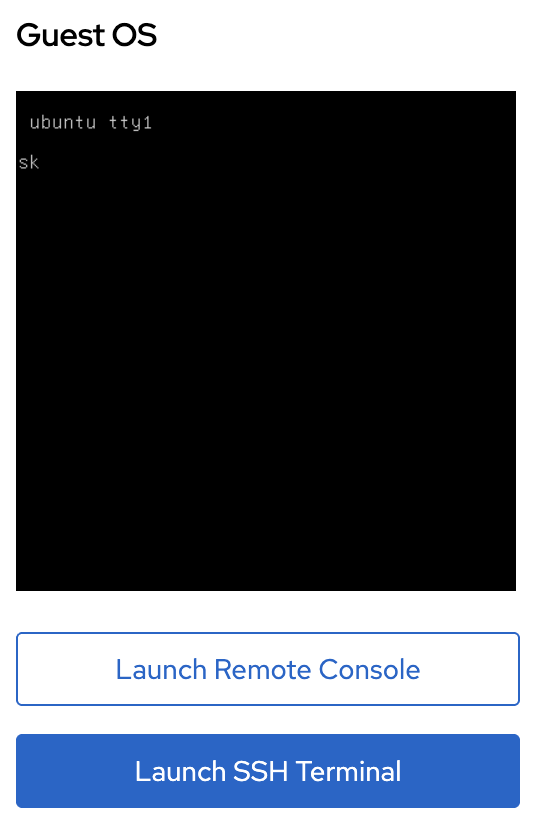
Remote Console opens a VNC session in your browser. Use it for VMs with a desktop environment, and when you need the boot process or the BIOS.
SSH Terminal opens a web terminal connected over SSH. It works when the VM runs the QEMU guest agent and has SSH keys configured.
Open the arrow tab on the left side of the VNC window, select Clipboard, paste the text into the box, and click Type into VM. This sends paced key events and therefore works at firmware, installer, login, and Linux text-console screens where a guest clipboard does not exist. Newlines are sent as Enter and tabs as Tab.
Editing the box also performs standard VNC clipboard synchronization for
graphical guests that support it. Pressing Ctrl+V directly in a Linux TTY does
not paste and may display ^V; use Type into VM there.
For VNC access with password authentication:
- Access the VM over SSH or serial console
- Create a user with
useradd -m <username> - Set a password with
passwd <username> - The user can now log in through the VNC console using these credentials
SSH access through a floating IP
For direct SSH access from your local machine, assign a Floating IP to your VM:
apiVersion: kube-dc.com/v1
kind: FIp
metadata:
  name: my-vm-fip
spec:
  externalNetworkType: public
  vmTarget:
    vmName: ubuntu
    interfaceName: vpc_net_0
kubectl apply -f fip.yaml
kubectl get fip my-vm-fip
After the FIP is Ready, SSH directly to the external IP:
ssh ubuntu@198.51.100.16
For the complete FIP configuration, see Deploy VMs.
SSH access through a LoadBalancer Service
To expose SSH without using a Floating IP, create a LoadBalancer service.
Use the default gateway EIP
For projects with egressNetworkType: public, the default gateway EIP is public:
apiVersion: v1
kind: Service
metadata:
  name: vm-ssh
  annotations:
    service.nlb.kube-dc.com/bind-on-default-gw-eip: "true"
spec:
  type: LoadBalancer
  selector:
    vm.kubevirt.io/name: ubuntu
  ports:
  - name: ssh
    port: 2222
    targetPort: 22
Use a dedicated public EIP
For projects with egressNetworkType: cloud, create a dedicated public EIP:
apiVersion: kube-dc.com/v1
kind: EIp
metadata:
  name: vm-ssh-eip
spec:
  externalNetworkType: public
---
apiVersion: v1
kind: Service
metadata:
  name: vm-ssh
  annotations:
    service.nlb.kube-dc.com/bind-on-eip: "vm-ssh-eip"
spec:
  type: LoadBalancer
  selector:
    vm.kubevirt.io/name: ubuntu
  ports:
  - name: ssh
    port: 2222
    targetPort: 22
kubectl apply -f vm-ssh-service.yaml
kubectl get svc vm-ssh
Connect using the LoadBalancer IP and custom port:
ssh -p 2222 ubuntu@<loadbalancer-ip>
For more options, see the Service exposure.
VirtCtl console access
The virtctl CLI gives you serial console access without network connectivity. Use it to troubleshoot network problems, and to reach a VM during boot.
Install virtctl
Install a virtctl release compatible with the platform KubeVirt version. Follow the official KubeVirt installation guide, which covers release binaries and the Krew plugin.
Serial console
# Open interactive console (press Ctrl+] to exit)
virtctl console ubuntu
VNC session
# Open the session in the configured VNC viewer
virtctl vnc ubuntu
To connect a viewer yourself, keep a proxy open on a known local port:
virtctl vnc ubuntu --proxy-only --port 5900
Then connect the viewer to localhost:5900.
Kubernetes API tunneling
Standard Project roles do not include
virtualmachineinstances/portforward. Consequently, virtctl ssh and
virtctl port-forward are not tenant access methods on Kube-DC. Use the
browser SSH terminal, a Floating IP, or a LoadBalancer Service instead.
Platform operators can use API tunneling only when they hold a separate
diagnostic role that grants the subresource explicitly.
Windows VMs: RDP and SSH
Windows VMs are reached the same way as Linux ones, but the login itself works differently, and knowing which mechanism supplies what saves a lot of guessing.
The account is kube-dc, the same login name the rest of the platform uses. It is
created on first boot, so a VM that has only started might not have it yet. Give
first boot a few minutes before concluding anything is wrong.
Two ways in, and they are provisioned by different mechanisms:
| How you connect | Where the credential comes from | |
|---|---|---|
| RDP (port 3389) | Any RDP client, to the VM's floating IP | Password, set through the guest agent |
| SSH (port 22) | ssh kube-dc@<floating-ip> | Your project's SSH key, installed by cloudbase-init |
RDP
Attach a floating IP to the VM, then point an RDP client at it:
kubectl get fip <vm-name> -o jsonpath='{.status.externalIP}'
- macOS: Windows App (formerly Microsoft Remote Desktop), from the App Store
- Linux:
xfreerdp /v:<floating-ip> /u:kube-dcor Remmina - Windows:
mstsc /v:<floating-ip>
The password is generated when the VM is created and stored in a Secret alongside it. In the UI it is on the VM's detail page; from the CLI:
kubectl get secret <vm-name>-console-credentials -o jsonpath='{.data}' | \
  python3 -c 'import sys,json,base64; d=json.load(sys.stdin); \
    print({k: base64.b64decode(v).decode() for k,v in d.items()})'
SSH
SSH works as it does on Linux. Your Project key is installed into the
kube-dc account on first boot:
ssh -i ~/.ssh/<project-key> kube-dc@<floating-ip>
The default shell is PowerShell, so ssh kube-dc@<ip> "Get-Service sshd" behaves the
way you would expect.
If Windows is not answering yet
A Windows first boot does noticeably more work than a Linux one: it specialises the image, creates the account, applies the password and key, and reboots once partway through. Until that finishes you may see RDP answering while SSH does not, or the reverse, because services come up at different points and the machine reboots in between.
On slower (HDD-backed) storage this can take considerably longer than on NVMe. Before concluding a VM is broken, check the graphical console: a VM sitting on "Getting devices ready" or "Starting services" is still working, not stuck.
Connection method comparison
| Method | Use Case | Requires Network | Requires Public IP |
|---|---|---|---|
| Console UI (VNC) | GUI access, troubleshooting boot | No | No |
| Console UI (SSH) | Quick terminal access | No | No |
| Floating IP | Direct SSH from anywhere | Yes | Yes |
| LoadBalancer | Shared IP, custom port | Yes | Optional |
| virtctl console | Serial console, boot access | No | No |
| virtctl vnc | VNC through API tunnel | No | No |
Troubleshooting
SSH connection refused
- Verify guest agent is running:
kubectl get vmi ubuntu -o jsonpath='{.status.conditions[?(@.type=="AgentConnected")].status}' - Check if SSH keys are injected:
virtctl console ubuntuand verify~/.ssh/authorized_keys - Confirm SSH daemon is running inside the VM:
systemctl status sshd
VNC console black screen
- The VM might still be booting. Wait for the readiness probe to report True:
kubectl get vm ubuntu -o jsonpath='{.status.ready}' - Check if the VM has a graphical environment installed
- Try the serial console:
virtctl console ubuntu
You cannot reach the VM through its floating IP
- Verify FIP status:
kubectl get fip -o wide - Check if
externalIPis assigned andready: true - Test connectivity from the VM to external network:
virtctl console ubuntuthenping 8.8.8.8
Next steps
- Managing VM Lifecycle: Start, stop, restart VMs
- Public and floating IPs: Manage IP addresses
- Service exposure: Expose VM services with HTTPS