Object storage (S3)
Kube-DC provides S3-compatible object storage for storing files, images, backups, and any unstructured data. You can manage buckets and files through the dashboard or use standard S3 tools like AWS CLI, s3cmd, and boto3.
Buckets
A bucket is a container for your objects (files). Each bucket has a unique name, its own access credentials, and can be set to Private or Public Read access.
The Object Storage view shows all your buckets with their S3 bucket name, status, access level, credentials availability, and age. The sidebar tree provides quick navigation between Overview, Buckets, and Access Keys.
Click on a bucket to expand its details:
- General Information: Name, S3 bucket name, backing namespace, storage class, status, and creation date
- S3 Connection: Endpoint URL, region, access toggle (Public/Private), and public URL
- Bucket Credentials: Per-bucket Access Key ID and Secret Access Key
- Actions: Browse Files or Delete the bucket
Create a bucket
Via dashboard
- Navigate to your project → Object Storage → Buckets
- Click + Create Bucket
- Enter a bucket name (lowercase, alphanumeric, hyphens allowed)
- Click Create
New buckets start private. After the bucket reaches Bound, expand its details and use the access toggle if you need Public Read.
The bucket name in S3 is prefixed with the Project's backing namespace for uniqueness (for example, bucket one becomes acme-production-one).
Via kubectl
Create an ObjectBucketClaim in the Project's backing namespace:
apiVersion: objectbucket.io/v1alpha1
kind: ObjectBucketClaim
metadata:
  name: my-bucket
  namespace: acme-production
  labels:
    kube-dc.com/organization: acme
spec:
  bucketName: acme-production-my-bucket
  storageClassName: ceph-bucket
The kube-dc.com/organization label must identify the owning Organization. The dashboard uses it to attribute manually created claims in Organization usage and bucket totals.
When the claim is bound, Rook automatically creates a Secret and ConfigMap in the same namespace with the bucket's S3 credentials:
# Check bucket status
kubectl get objectbucketclaim -n acme-production

# Get per-bucket S3 credentials
kubectl get secret my-bucket -n acme-production -o yaml

# Get bucket connection info
kubectl get configmap my-bucket -n acme-production -o yaml
The ConfigMap contains:
BUCKET_HOST: Internal S3 endpointBUCKET_NAME: Full bucket name in S3BUCKET_PORT: Service portBUCKET_REGION: Region identifier
Bucket access: private and public
- Private (default): Only accessible with valid S3 credentials
- Public Read: Anyone with the URL can read objects; writing still requires credentials
Toggle access from the bucket detail view in the dashboard. The S3 Connection panel shows the endpoint configured for your installation. Public object URLs follow this pattern:
<S3_ENDPOINT>/<bucket-name>/<object-key>
Delete a bucket
kubectl delete objectbucketclaim my-bucket -n acme-production
Deleting a bucket removes all objects inside it permanently.
File browser
The built-in file browser lets you manage objects directly from the dashboard without any external tools.
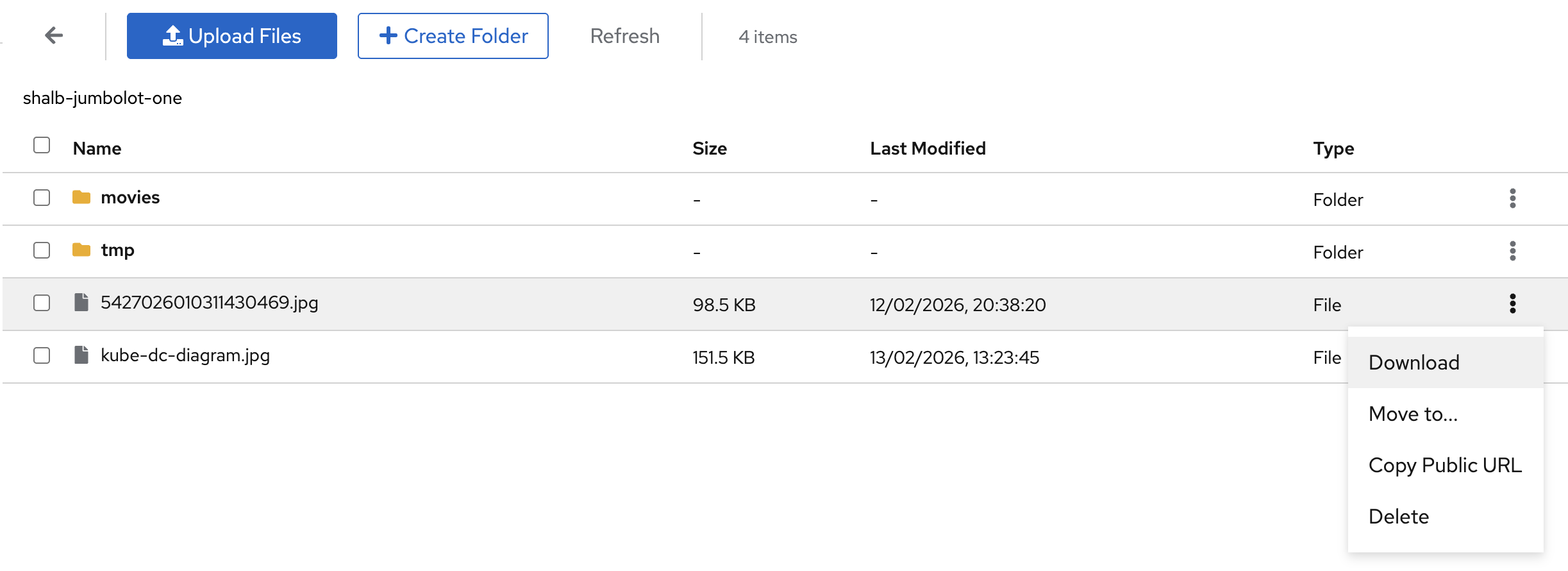
From the bucket detail view, click Browse Files to open the file browser. You can:
- Upload Files: Click Upload Files and select one or more files
- Create Folders: Click + Create Folder to organize objects into prefixes
- Download: Right-click or use the action menu to download files
- Move: Move objects to a different folder within the bucket
- Copy Public URL: Get a direct link for public buckets
- Delete: Remove individual files or folders
The file browser shows each object's name, size, last modified date, and type (File or Folder).
Access keys
Kube-DC exposes two credential scopes:
Organization account keys
The Access Keys section manages credentials for the Organization's RGW account. These keys can operate buckets owned by that account and are also used by the platform for account administration and usage reporting.
Buckets created through the dashboard or as standard ObjectBucketClaims are owned by separate, per-bucket users. Organization account keys do not grant data access to every ObjectBucketClaim in the Organization.
The Access Keys view shows:
- Credentials: Your primary Access Key ID, Secret Access Key (click to reveal), S3 endpoint, and region
- Key Management: Generate additional keys or revoke existing ones
Use Organization account keys only with buckets owned by that account. For dashboard-created buckets and ObjectBucketClaims, use the per-bucket credentials below. The Access Keys view shows the configured S3 endpoint and region.
Per-bucket keys
Each dashboard-created bucket or ObjectBucketClaim has its own credentials, available in the bucket detail view or as a Kubernetes Secret in its backing namespace:
# Get per-bucket credentials
kubectl get secret my-bucket -n acme-production -o jsonpath='{.data.AWS_ACCESS_KEY_ID}' | base64 -d
kubectl get secret my-bucket -n acme-production -o jsonpath='{.data.AWS_SECRET_ACCESS_KEY}' | base64 -d
Per-bucket keys are scoped to that specific bucket only.
Rotate a per-bucket key
Where your platform operator has enabled key rotation, a Project admin can replace a bucket's key while managed services keep using the bucket as their backup archive. A rotation creates a new key and writes it into the bucket's Secret. It then waits until every managed service that reads or writes the bucket has switched to the new key or no longer exists, and only then revokes the old key. The console does not offer rotation yet; use the API with your console session token:
POST https://backend.<your-domain>/api/object-storage/<project-namespace>/buckets/<bucket>/key-rotations
{"idempotencyKey": "rotate-2026-10", "claimUID": "<ObjectBucketClaim UID>",
 "sourceSecretUID": "<bucket Secret UID>", "gracePeriodSeconds": 300}
The two UIDs pin the bucket and its Secret as you saw them; a changed incarnation is refused.
Repeat the same request safely: the idempotency key names one rotation. GET on the same path
lists rotations, and GET .../key-rotations/<rotation> shows one, including its phase and why it
waits.
A rotation that can never finish (for example, a service that cannot switch keys) can be
abandoned: POST .../key-rotations/<rotation>/abandon with
{"rotationUID": "<uid>", "reason": "<why>"}. Abandoning revokes nothing. Both the old and the
new key stay valid, the rotation ends as Abandoned, and the next rotation of the bucket that
succeeds retires the keys this one left behind. An abandon cannot be withdrawn. While a key is
being revoked, an abandon waits until that step finishes.
Use S3 tools
The examples below use a bucket's per-bucket credentials. Set S3_ENDPOINT to the endpoint shown in the bucket detail or Access Keys view.
AWS CLI
export S3_ENDPOINT='https://s3.your-provider.example'

# Configure credentials
aws configure set aws_access_key_id YOUR_ACCESS_KEY
aws configure set aws_secret_access_key YOUR_SECRET_KEY

# Upload a file
aws --endpoint-url "$S3_ENDPOINT" s3 cp myfile.txt s3://acme-production-my-bucket/

# Download a file
aws --endpoint-url "$S3_ENDPOINT" s3 cp s3://acme-production-my-bucket/myfile.txt ./

# List objects in a bucket
aws --endpoint-url "$S3_ENDPOINT" s3 ls s3://acme-production-my-bucket/

# Sync a directory
aws --endpoint-url "$S3_ENDPOINT" s3 sync ./backups s3://acme-production-my-bucket/backups/
Python (boto3)
import os
import boto3

s3 = boto3.client(
    's3',
    endpoint_url=os.environ['S3_ENDPOINT'],
    aws_access_key_id='YOUR_ACCESS_KEY',
    aws_secret_access_key='YOUR_SECRET_KEY',
)

# List objects in the bucket available to these credentials
response = s3.list_objects_v2(Bucket='acme-production-my-bucket')
for item in response.get('Contents', []):
    print(item['Key'])

# Upload a file
s3.upload_file('myfile.txt', 'acme-production-my-bucket', 'myfile.txt')

# Download a file
s3.download_file('acme-production-my-bucket', 'myfile.txt', 'downloaded.txt')
s3cmd
export S3_HOST='s3.your-provider.example'

# Configure
s3cmd --configure \
  --host="$S3_HOST" \
  --host-bucket="$S3_HOST" \
  --access_key=YOUR_ACCESS_KEY \
  --secret_key=YOUR_SECRET_KEY

# List objects
s3cmd ls s3://acme-production-my-bucket/

# Upload
s3cmd put myfile.txt s3://acme-production-my-bucket/
Use credentials from Kubernetes Secrets
For workloads running inside your project, you can mount the per-bucket credentials directly:
apiVersion: v1
kind: Pod
metadata:
  name: s3-worker
  namespace: acme-production
spec:
  restartPolicy: Never
  containers:
    - name: worker
      image: amazon/aws-cli
      command: ["/bin/sh", "-c"]
      args:
        - >-
          aws --endpoint-url "http://${BUCKET_HOST}:${BUCKET_PORT}"
          s3 ls "s3://${BUCKET_NAME}/"
      env:
        - name: AWS_ACCESS_KEY_ID
          valueFrom:
            secretKeyRef:
              name: my-bucket
              key: AWS_ACCESS_KEY_ID
        - name: AWS_SECRET_ACCESS_KEY
          valueFrom:
            secretKeyRef:
              name: my-bucket
              key: AWS_SECRET_ACCESS_KEY
        - name: BUCKET_HOST
          valueFrom:
            configMapKeyRef:
              name: my-bucket
              key: BUCKET_HOST
        - name: BUCKET_PORT
          valueFrom:
            configMapKeyRef:
              name: my-bucket
              key: BUCKET_PORT
        - name: AWS_DEFAULT_REGION
          valueFrom:
            configMapKeyRef:
              name: my-bucket
              key: BUCKET_REGION
        - name: BUCKET_NAME
          valueFrom:
            configMapKeyRef:
              name: my-bucket
              key: BUCKET_NAME
Quotas
Object storage limits depend on your provider, Organization allocation, and current plan. Use the Billing page as the source of truth for the limits presented by your installation; do not rely on fixed plan values in automation.
The Object Storage Overview aggregates usage for ObjectBucketClaims carrying the correct kube-dc.com/organization label.
The standard Rook ObjectBucketClaim provisioner creates a separate S3 user for each bucket. The Organization account quota displayed by Kube-DC is therefore not, by itself, an aggregate admission boundary for those per-bucket users. Do not assume that crossing the displayed limit will automatically reject a new claim or upload; your provider may apply additional enforcement.
Quick reference
| Action | Command |
|---|---|
| List buckets | kubectl get objectbucketclaims -n acme-production |
| Create bucket | kubectl apply -f bucket.yaml |
| Delete bucket | kubectl delete objectbucketclaim <name> -n acme-production |
| Get bucket credentials | kubectl get secret <bucket-name> -n acme-production |
| Get bucket config | kubectl get configmap <bucket-name> -n acme-production |
| S3 list objects (AWS CLI) | aws --endpoint-url "$S3_ENDPOINT" s3 ls s3://bucket/ |
| S3 upload | aws --endpoint-url "$S3_ENDPOINT" s3 cp file s3://bucket/ |
Next steps
- Block storage: Persistent volumes for VMs and containers
- Backups and snapshots